Quality Assurance: Test Case Generation
The Quality Assurance module helps you create detailed test cases from user stories, streamlining your testing process for greater efficiency.
How to Generate Test Cases
Follow these steps to generate test cases using the AI-powered tool.
Step 1: Provide the Context
-
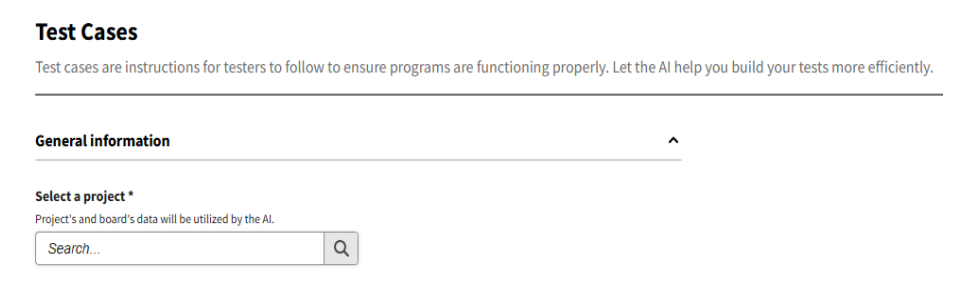
Select a Project: Choose a project linked to your organization's board.
-
Select a User Story:
- If your organization is linked to a management platform, select a user story from the dropdown list.
- Otherwise, you will need to manually enter the user story text.
ImportantThe "Select a User Story" field is only enabled after a project is chosen. If your organization does not have a provider linked, this field will not be displayed.

-
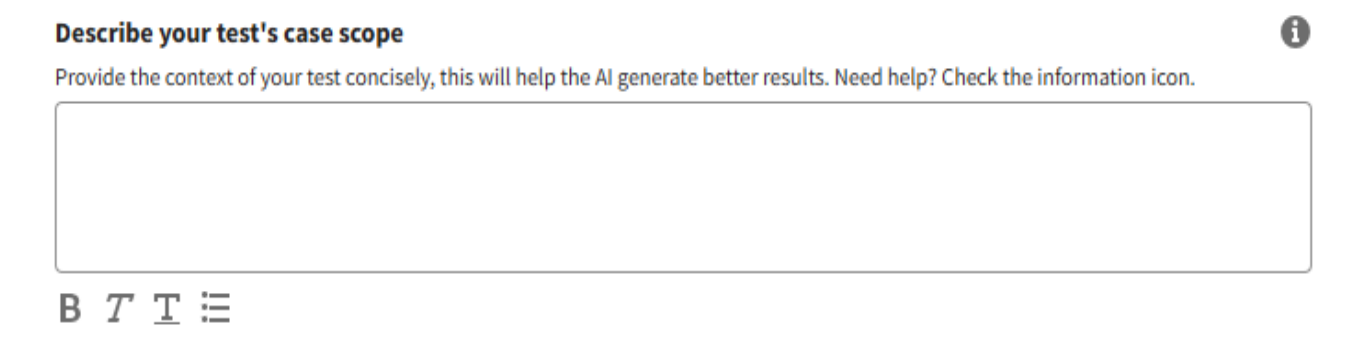
Describe the Context (Optional): Provide additional details to help the AI generate more accurate and relevant test cases. A help icon is available for guidance.
-
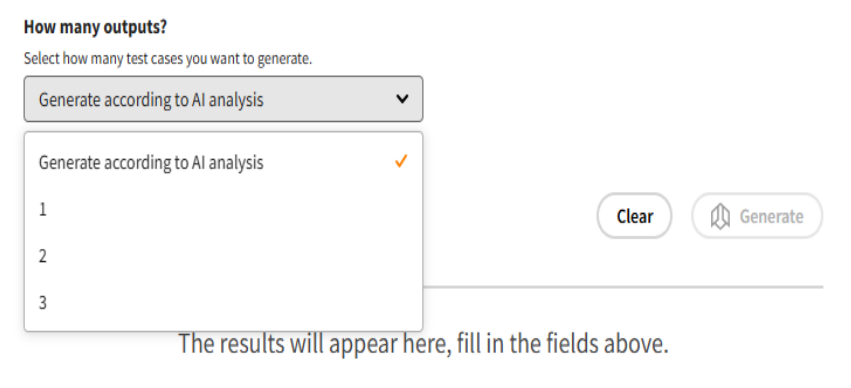
Define the Number of Outputs: Choose how many test case variations you want the AI to generate.
Step 2: Generate and Review
-
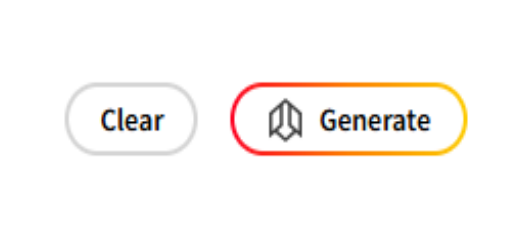
Generate: Once the required fields are filled, click "Generate" to start the process. You can click "Clear" at any time to reset the fields.
-
Review the Results: The AI will generate test cases based on your input.
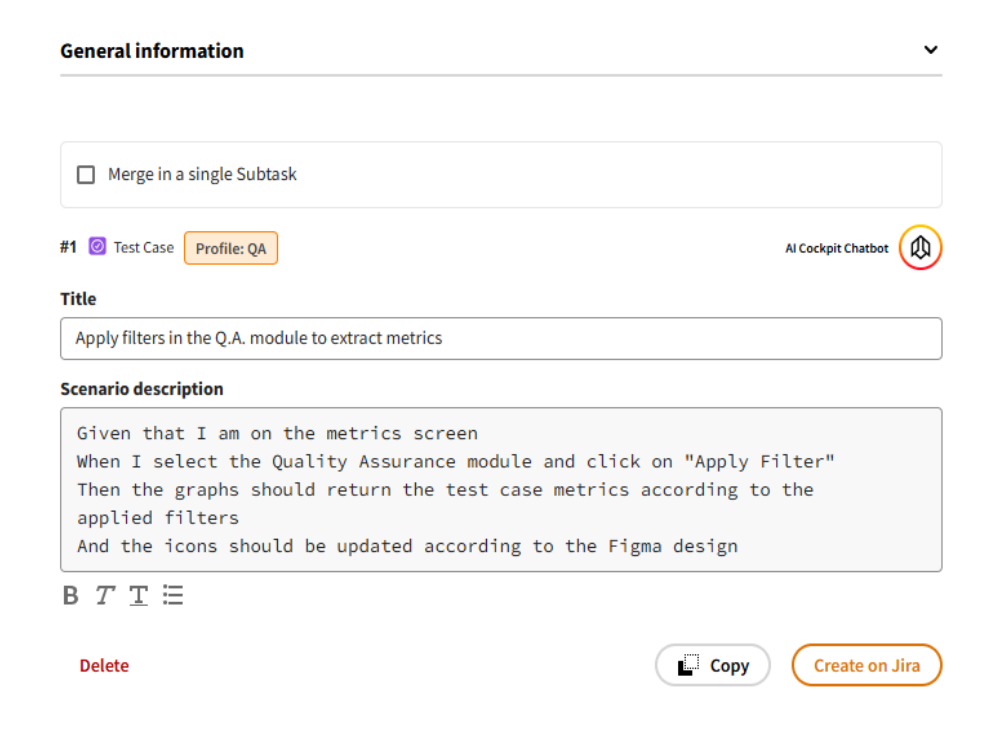
Step 3: Interact with the Results
After the test cases are generated, you can:
- Edit: Modify the title and description of each test case.
- Copy: Copy the description to your clipboard.
- Create on Provider: If your organization is linked to a management platform, you can create the test case directly on your board.
- Chatbot: Use the integrated chatbot to refine the results or request new ones.
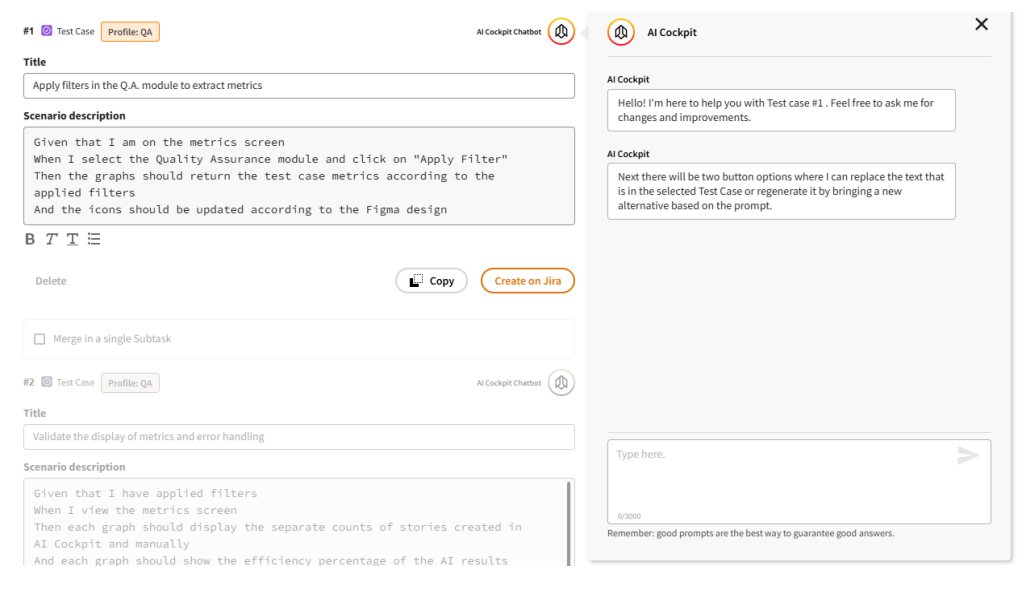
Additional Options
- New Output: Click to generate an additional test case.
- Merge all selected: If you have multiple test cases, you can select them and click this button to combine them into a single test case. This button is only enabled when more than one test case is selected.
