Autocomplete
When enabled, AI Cockpit Reasoning will provide inline code suggestions as you type.
How to Access Autocomplete Settings
To access the Autocomplete settings, follow these steps:
- Click the AI Cockpit Reasoning icon (
 ) in the VS Code primary side bar
 - Open Settings by clicking the gear icon
- In the Settings panel, select Autocomplete from the sidebar.
Auto Trigger
Enable Autocomplete
When enabled, AI Cockpit will automatically trigger Autocomplete when you stop typing. This can be useful for quick fixes and suggestions.

Auto Trigger Delay
You can set the delay in seconds before AI Cockpit triggers Autocomplete after you stop typing. A shorter delay means quicker suggestions, but may be more resource-intensive.

Triggers
Autocomplete features can be triggered by commands. You can configure the Keyboard Shortcuts in your IDE settings.
Quick Task
For a quick change, you can select some code (or not) and press Cmd+I. Describe your goal in plain English (e.g., "create a React component with these props" or "add error handling to this function"), and you'll get multiple, ready-to-use suggestions right in your editor.
Manual Autocomplete
If you need a quick fix, completion, or refactor, Reasoning will use the surrounding context to offer immediate improvements, keeping you in the flow.

Provider
Use custom provider
By default, Autocomplete uses the Codestral model through KiloCode / OpenRouter / Mistral credentials. You can opt to use a custom provider.
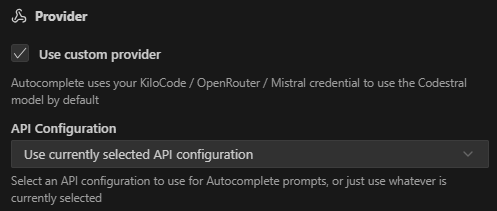
You can also select a specific API configuration to use for Autocomplete prompts.