Chatting with AI Cockpit Reasoning
tip
Bottom line: AI Cockpit Reasoning is an AI coding assistant that lives in VS Code. You chat with it in plain English, and it writes, edits, and explains code for you.
Quick Setup
Find the AI Cockpit Reasoning icon ( ) in VS Code's Primary Side Bar. Click it to open the chat panel.
Lost the panel? Go to View > Open View... and search for "AI Cockpit Reasoning"
How to Talk to AI Cockpit Reasoning
The key insight: Just type what you want in normal English. No special commands needed.
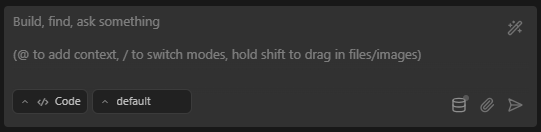
Good requests:
create a new file named utils.py and add a function called add that takes two numbers as arguments and returns their sum
in the file @src/components/Button.tsx, change the color of the button to blue
find all instances of the variable oldValue in @/src/App.js and replace them with newValue
What makes requests work:
- Be specific - "Fix the bug in
calculateTotalthat returns incorrect results" beats "Fix the code" - Use @ mentions - Reference files and code directly with
@filename - One task at a time - Break complex work into manageable steps
- Include examples - Show the style or format you want
The Chat Interface
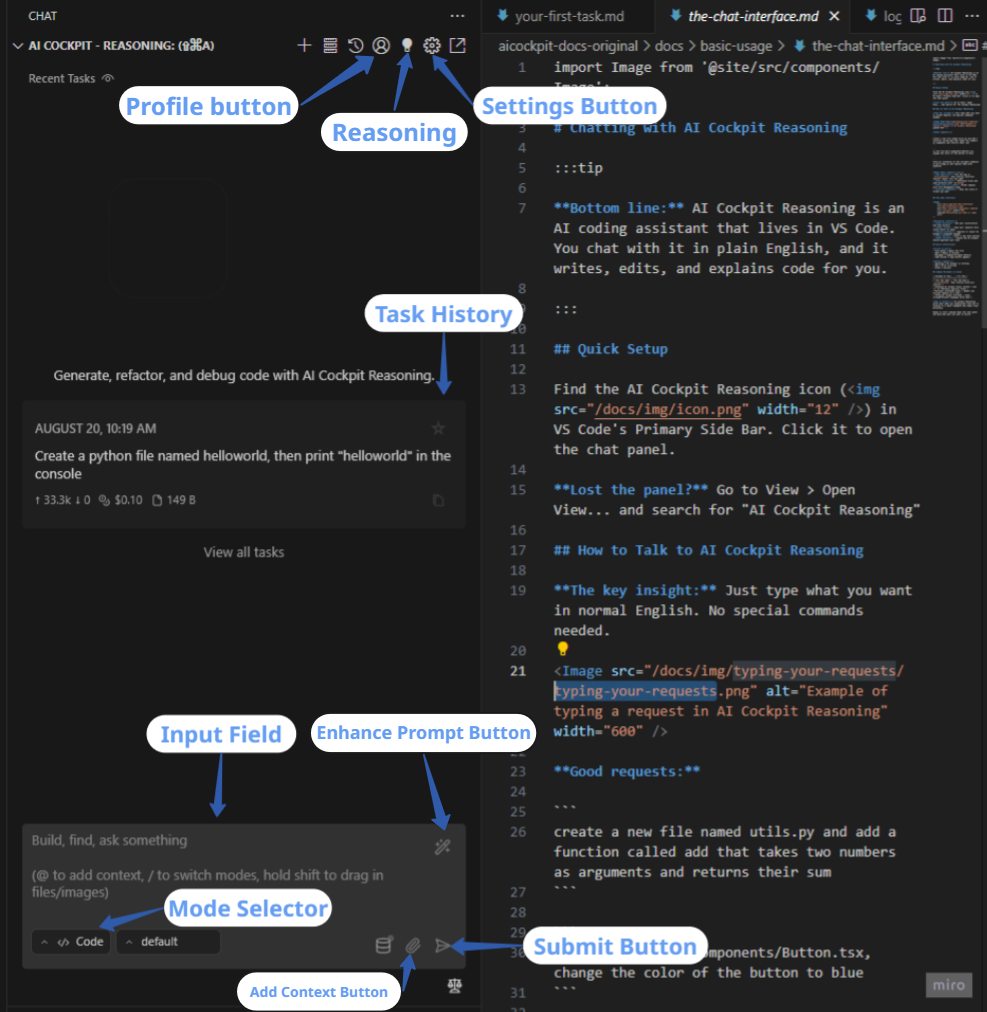
Everything you need is right here
Essential controls:
- Chat history - See your conversation and task history
- Input field - Type your requests here (press Enter to send)
- Action buttons - Approve or reject AI Cockpit's proposed changes
- Plus button - Start a new task session
- Mode selector - Choose how AI Cockpit should approach your task
Quick Interactions
Click to act:
- File paths → Opens the file
- URLs → Opens in browser
- Messages → Expand/collapse details
- Code blocks → Copy button appears
Status signals:
- Spinning → AI Cockpit is working
- Red → Error occurred
- Green → Success
Common Mistakes to Avoid
| Instead of this... | Try this |
|---|---|
| "Fix the code" | "Fix the bug in calculateTotal that returns incorrect results" |
| Assuming AI Cockpit knows context | Use @ to reference specific files |
| Multiple unrelated tasks | Submit one focused request at a time |
| Technical jargon overload | Clear, straightforward language works best |
Why it matters: AI Cockpit Reasoning works best when you communicate like you're talking to a smart teammate who needs clear direction.
Ready to start coding? Open the chat panel and describe what you want to build!