Enable Pull Request Reviews and Connect a Provider
Pull Request Reviews is off by default. Turn on Pull Request Reviews in Settings → Experimental to use it.
Pull Request Reviews evaluates open pull requests from GitHub or Bitbucket with an AI review agent, then lets you publish the review to the provider. It has its own view in the Activity Bar, separate from Chat and Agent Manager.
Turn the feature on
- Open Settings → Experimental.
- Turn on Pull Request Reviews and save.
- Select the AI Cockpit PR Review icon in the Activity Bar, or run AI Cockpit Reasoning: Open Pull Request Reviews.
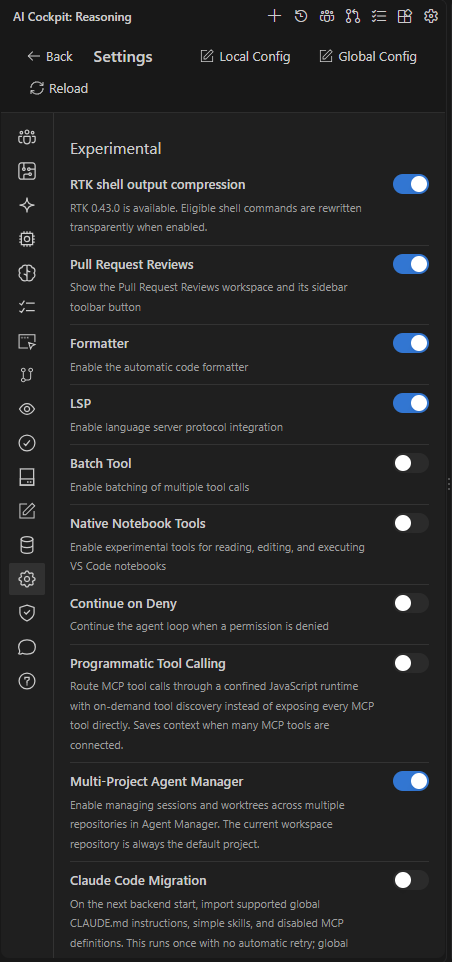
Pull Request Reviews is one of the options in Settings → Experimental.
Connect GitHub or Bitbucket
Open Source control connections from the view, or run AI Cockpit PR Review: Configure Connections.
- GitHub: select Configure, then sign in with the GitHub CLI (
gh auth login) or use a fine-grained token with read and write permission for pull requests. An existing GitHub sign-in in VS Code is reused when available. - Bitbucket: enter the Atlassian account email and a Bitbucket API token with the
read:pullrequest:bitbucketandwrite:pullrequest:bitbucketscopes, then select Save and connect. When this machine already has a Git credential for Bitbucket, select Use Git credential instead.
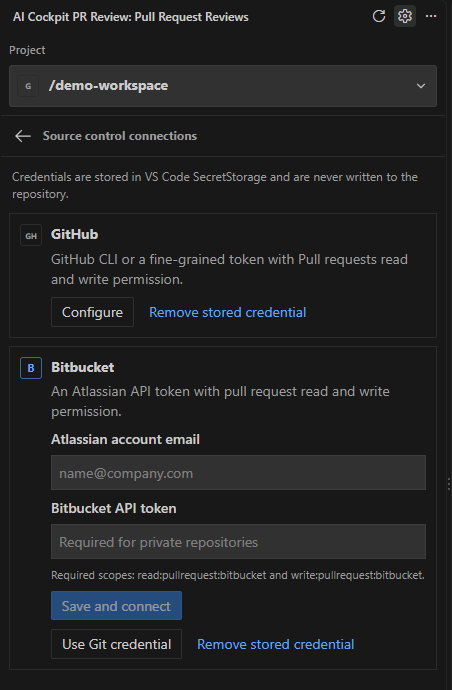
Each provider has its own connection; credentials stay in VS Code SecretStorage.
Credentials are stored in VS Code SecretStorage and are never written to the repository. Select Remove stored credential to disconnect.
Choose the project
The view asks you to Select a project to review pull requests:
- List GitHub projects or List Bitbucket projects to pick a repository you can access;
- Choose a local repository… to use a folder on your computer.
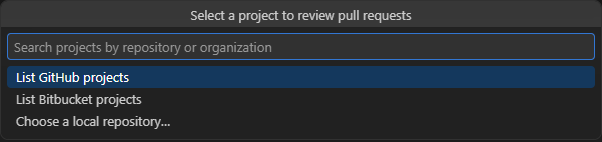
Pick a project from GitHub, Bitbucket, or a local folder.
The view then lists the project's pull requests on the Open tab; the ones you already evaluated move to Evaluated. Select Refresh pull requests to load new ones.
Continue with Review a pull request.