Install from the AI Cockpit Marketplace
The Marketplace lists the agents, skills, MCP servers, plugins, rules, and bundles published for your AI Cockpit organization. Install an item when its capability belongs to the project or workflow you are configuring.
Open the Marketplace
Select Marketplace in the Reasoning view, run AI Cockpit Reasoning: Marketplace, or select Marketplace in Settings. The Marketplace requires an AI Cockpit account; select Sign in to AI Cockpit if you are signed out.
A Marketplace link to a specific version opens that exact version in the extension.
Find an item
The catalog lists what is published. Narrow it with Search and the type filters (agent, skill, MCP server, bundle, plugin, rule, document) and category filters. Select Installed to see what you already installed, and Catalog to return. Select Refresh to load new items.
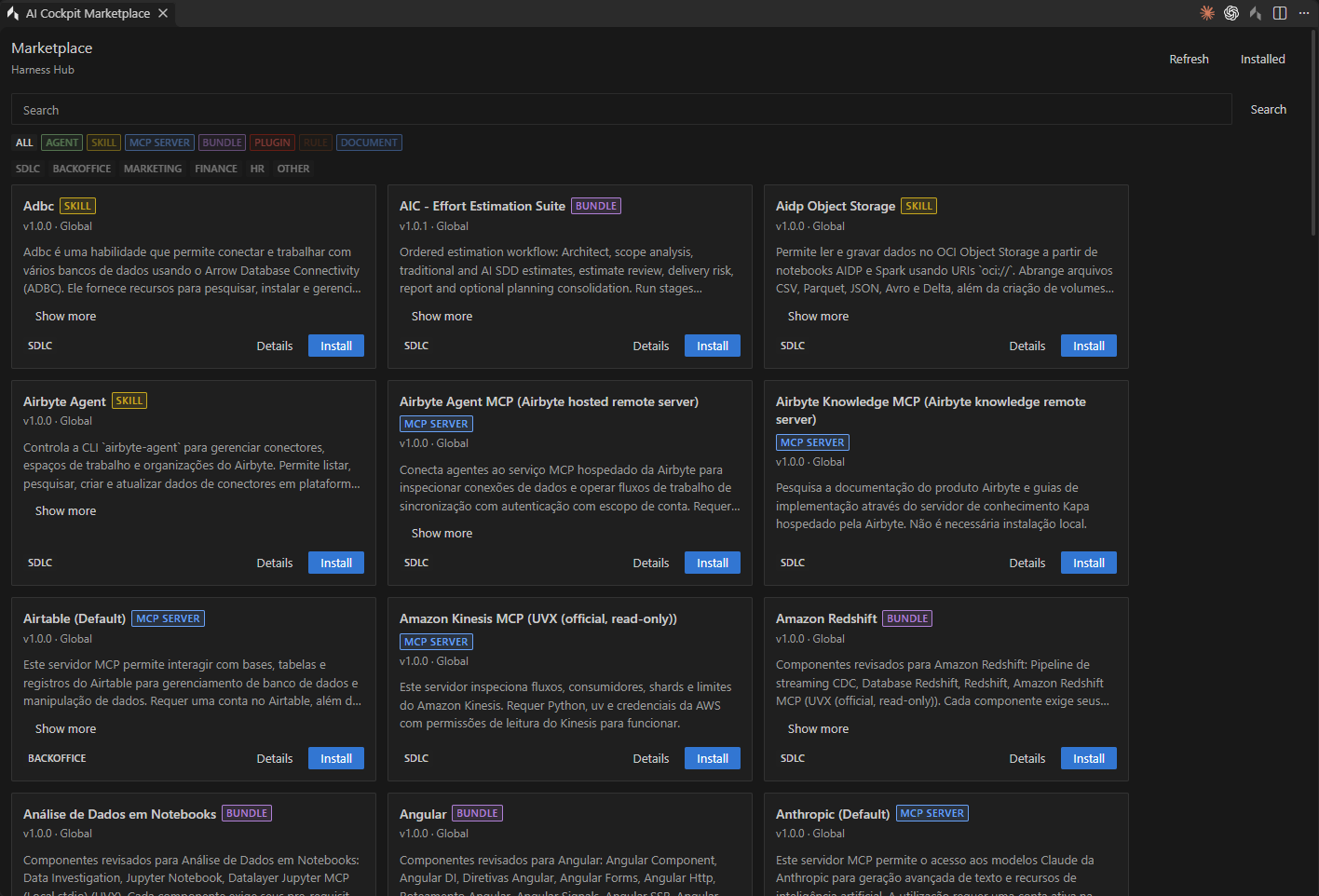
Each card shows the item type, version, scope, category, and the Details and Install actions.
Open an item's Details to review what it adds before installing:
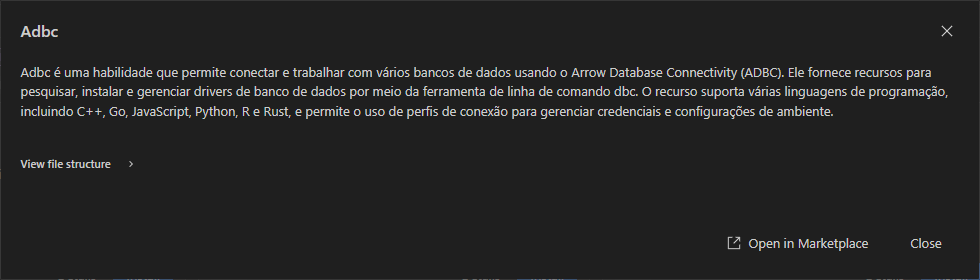
Details describes the item before you install it.
- View file structure lists the published files and, for a bundle, its components. It shows metadata only; no file is downloaded or run.
- Open in Marketplace opens the same version on the AI Cockpit Marketplace website.
- Navigate to latest published version appears when you are looking at an older version.
Marketplace does not make an item safe or appropriate for every repository. Review external commands and connections, especially for MCP servers and plugins, before you install them.
Install an item
- Select Install, then Prepare installation. The extension downloads and validates the package; no commands or scripts run at this step.
- Choose the Destination: Project installs the files in the current project, where they can be committed and shared with your team; Personal installs them for every project on your computer.
- Optionally set a Qualified model override to use a specific model with the installed item.
- Review Files to apply, including any warnings or conflicts with files you already have.
- Select Confirm and apply.
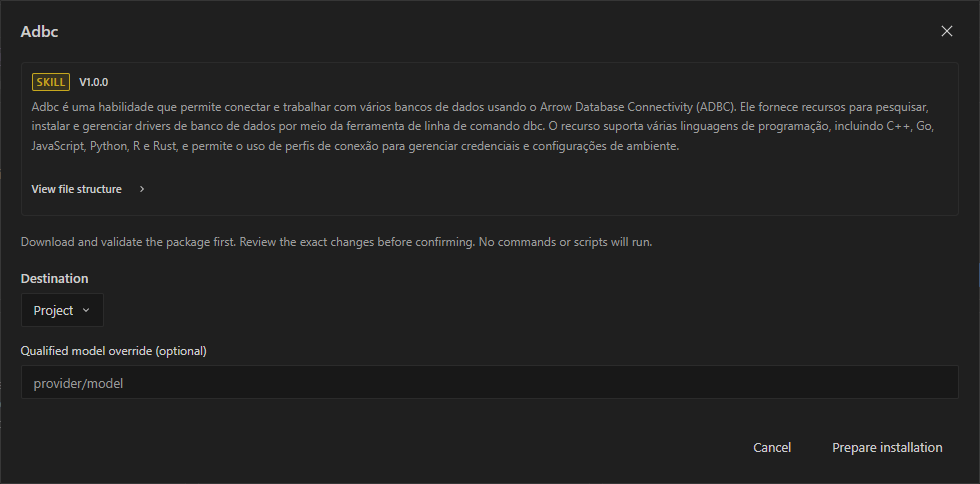
Preparing the installation downloads and validates the package without running commands.
Agents appear under Settings → Agents → Agents, skills under Skills, and MCP servers under MCP Servers. Run /reload if an installed item does not appear right away.
Update or remove an item
Each item shows whether it is available, installed, or changed since you installed it.
- Select Prepare update to install a newer version. The update keeps the files you edited locally.
- Select Install in another scope to add the same item to the other destination.
- Select Remove to uninstall it. Files you modified are preserved.
Removing an item does not rewrite earlier transcripts, but a resumed session may no longer be able to repeat actions that depended on it.