Find and Resume Reasoning Sessions
History lists the sessions stored on this machine. Use it to return to work that depends on an earlier conversation or result.
The VS Code extension and the AI Cockpit Reasoning CLI share the same session history, so a session started in one can be resumed in the other.
Open a previous session
- Open the Reasoning view.
- Select History, or type
/sessionsin Chat. - Stay on Local for sessions in the current workspace. When Agent Manager worktree sessions exist, select Worktree to see them.
- Type in Search sessions... to filter by title.
- Select a session to resume it.
Sessions are grouped by recency. Select Load more at the end of the list to show older sessions. The resumed transcript includes its earlier messages and tool activity.
Manage a session
Open the session menu to:
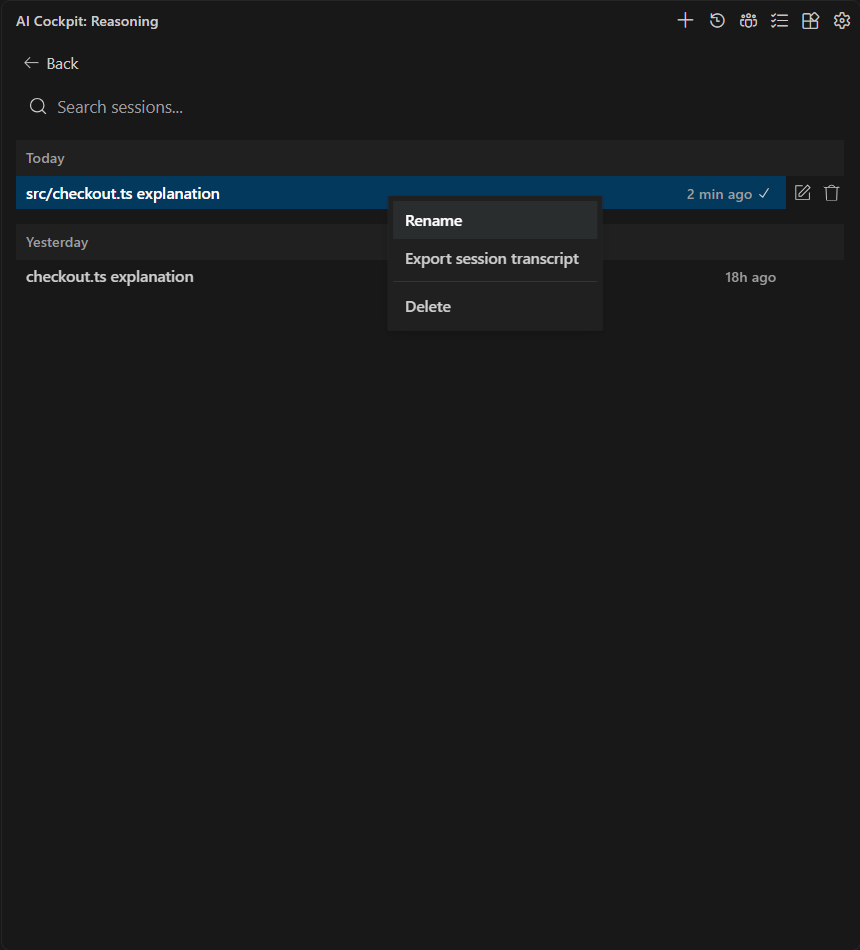
Use the session menu to rename, export, or delete a local transcript.
- Rename the session so it is easier to find;
- Export session transcript as Markdown;
- Delete its local record.
Deleting a session does not revert files, branches, external operations, or commits created during the work.
Clean up old sessions automatically
Open Settings → Checkpoints and turn on Enable automatic session cleanup. Set Keep sessions for (days) to choose how long history is kept.
Cleanup applies to every project and every AI Cockpit client on this machine, not only the current window. Running sessions are skipped. Select Run Cleanup Now to clean up immediately, or Stop cleanup to interrupt a run. Last cleanup shows the result of the most recent run.
Reduce a long conversation
Type /compact in the active session to summarize earlier context and continue with a shorter history. Review the summary when a decision or constraint must stay explicit. See Keep Long Sessions Healthy.