Respond to Questions and Permission Requests
Reasoning pauses when it needs a decision or when an operation requires approval. Answer the request shown below the transcript; the session continues after your response.
Answer a question
A question can have one or several steps, suggested answers, and a field for your own answer. The header shows your position, for example 1 of 3 questions.
- Read the question. Select one answer or Select all answers that apply tells you how many you can pick.
- Select a suggested answer, or use Type your own answer.
- Select Next to move to the following question, or Back to change an earlier one.
- On the last step, check Review your answers and select Submit.
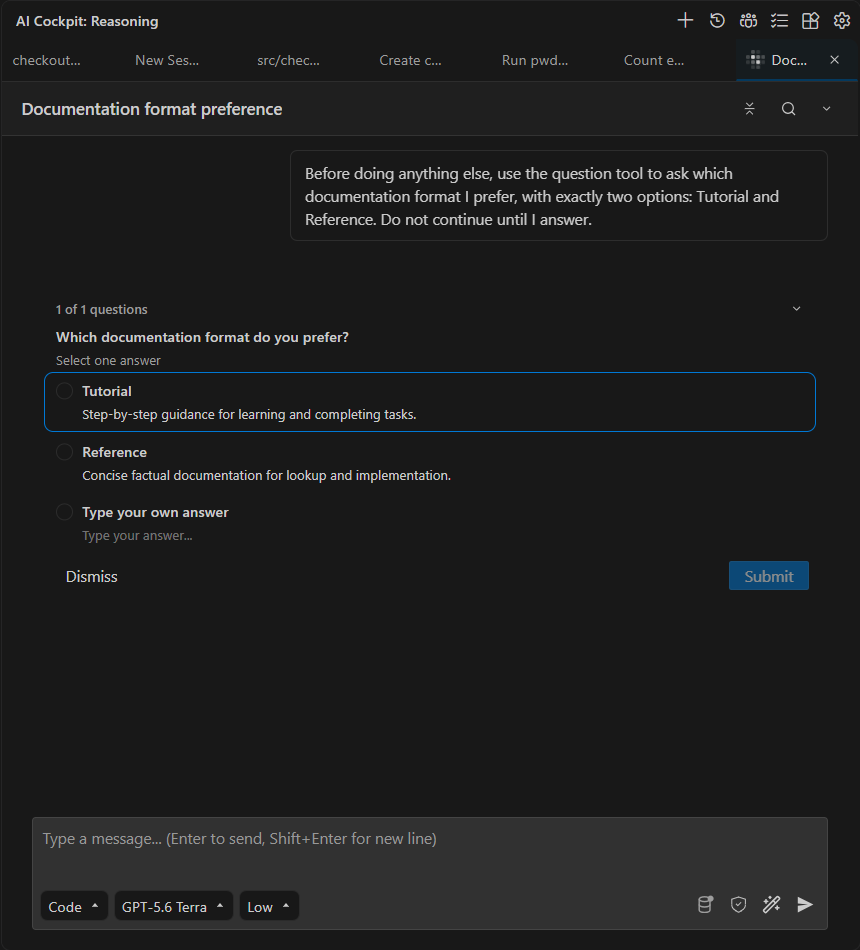
Choose one of the suggested answers, provide your own, or dismiss the question.
Select Dismiss when the agent should continue without an answer, or when you want to give different guidance in Chat.
Review a permission request
A permission request names the operation the agent wants to run. Depending on the tool, it shows a command, path, URL, diff, or external service.
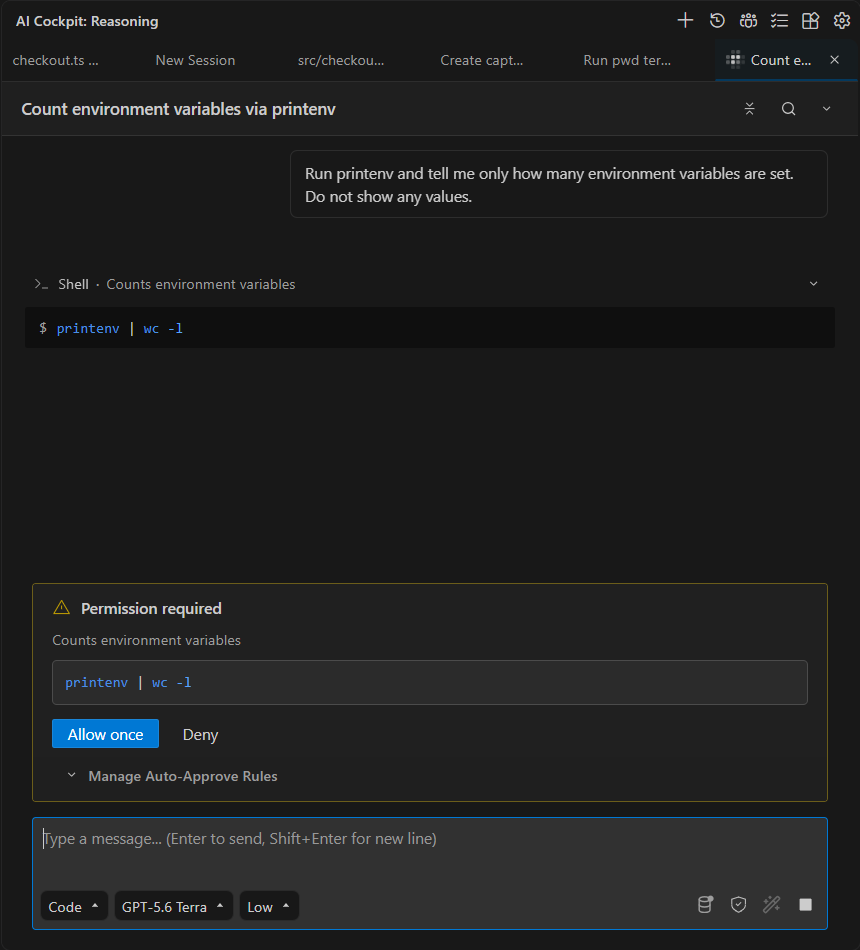
The request shows the exact operation before you allow it once or deny it.
Before allowing it, confirm that:
- the operation is necessary for the current request;
- the target is the file, directory, command, or service you expect;
- the scope is no broader than needed;
- you understand whether it reads or changes data.
Select Allow once when the operation is appropriate.
Deny and redirect the agent
Select Deny when the action or its scope is unclear. A field opens where you can tell the agent what to do differently, for example "Run only the unit tests in src/checkout". Press Enter or select Reject to send the denial with your note, or press Esc to cancel.
Save a rule from the request
Expand Manage Auto-Approve Rules in the request to turn the operation into a persistent rule. For each suggested pattern, choose Add to allowed list or Add to denied list. Matching operations then follow that rule without asking again.
Keep these rules narrow. Review and change them later in Settings → Auto-Approve.
When a tool call runs because of a rule or the agent's defaults, the transcript shows the reason under the call. Turn this off with Show Auto-Approval Reason in Settings → Display.
See Tools and Permissions for how one-time approval, persistent rules, and the sandbox fit together.