Personalize AI Cockpit Reasoning
Adjust how the interface looks and when it alerts you, without changing what agents are allowed to do.
Display
Open Settings → Display.
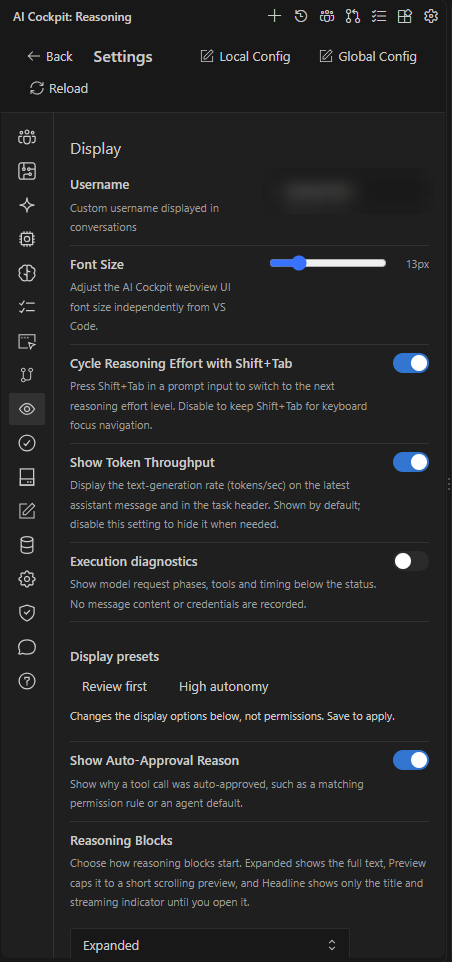
Display presets change only how the interface looks, not what agents can do.
- Display presets apply a set of display options in one step: Review first expands reasoning, commands, and edits; High autonomy collapses tool details and shows a compact reasoning preview. Presets change only display options, not permissions. Save to apply.
- Font Size sets the Reasoning interface size independently from VS Code.
- Reasoning Blocks chooses how reasoning starts: Expanded, Preview, or Headline. Auto-Collapse Reasoning collapses a block once the agent finishes writing it.
- Terminal Command Blocks, Code Edit Blocks, and MCP & Generic Tool Blocks each start expanded or collapsed.
- Show Token Throughput shows the generation speed, in tokens per second, on the latest answer and in the session header.
- Show Auto-Approval Reason explains, under each tool call, why it ran without asking.
- Cycle Reasoning Effort with Shift+Tab lets Shift+Tab change the effort level in the prompt.
- Execution diagnostics shows how long each phase of a model request takes, such as preparing, waiting, streaming, and running tools. It records only identifiers and durations, never message content or credentials.
- Username sets the name shown for your messages in conversations.
Notifications and sounds
Open Settings → Notifications and choose how Reasoning gets your attention:
| Setting | Effect |
|---|---|
| Enable VS Code Notifications | Shows a VS Code notification when a session finishes or needs input outside the current view. |
| Enable OS Notifications | Shows a system notification when a session finishes or needs input while VS Code is not active. |
| Enable Sound Notifications | Plays a sound when a session completes, hits an error, or needs input. |
Choose which events notify you (Agent Completion, Permission Requests, and Errors) and the sound for each one.
Keep permission and error notifications on when sessions run while you work elsewhere. For long tasks, also consider keeping the computer awake; see Agent Manager.
Language
Open Settings → Language and choose Auto (VS Code language) or a specific language. The interface is available in English, Portuguese (Brazil), and Spanish. Command Palette titles stay in English.
The language of generated commit messages is set separately under Settings → Commit Message. It can follow the interface language or use another one.