Compare the Available Models
This page describes a feature in a pre-release version of AI Cockpit Reasoning. It may not be available in your installed version yet.
The Model Comparison panel shows intelligence scores, programming benchmarks, and prices for the models your organization can use. Use it to pick a model for a task, or to set main, subagent, and small model defaults that balance quality and cost.
Open the comparison
- In the model selector, open a model's details and select Compare available models.
- Or run AI Cockpit Reasoning: Compare Available Models from the Command Palette.
The panel lists only the models available to you. Benchmark data comes from Artificial Analysis and is cached for six hours; select Refresh to fetch it again. Prices come from the Reasoning model catalog.
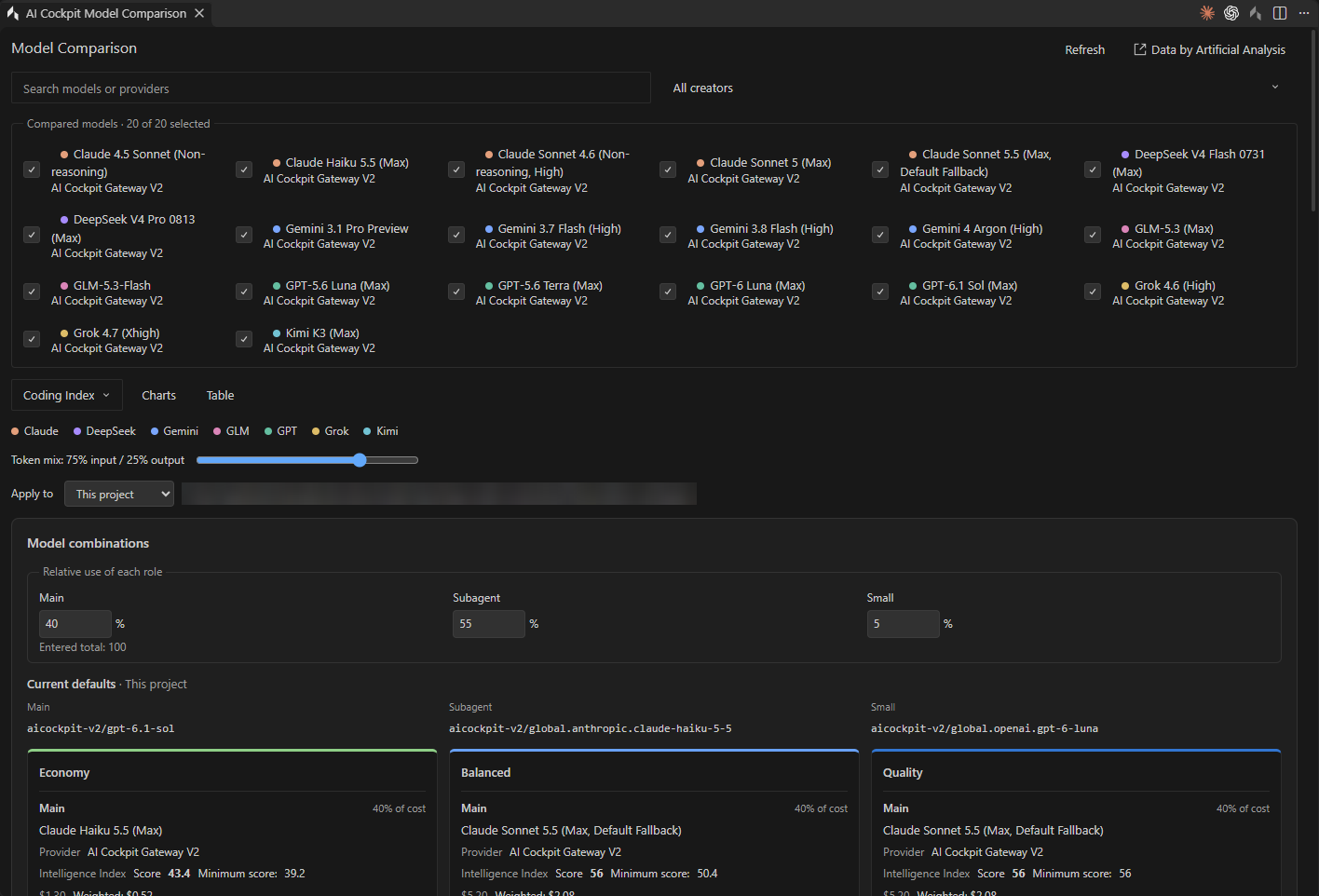
Choose the models to compare, the benchmark, and the input and output token mix.
Read the comparison
- Filter the list by name, provider, or Model creator, and choose which models to compare.
- Choose the Programming benchmark to show, such as Coding Index or a Terminal-Bench version.
- Switch between Charts and Table.
The charts show the Intelligence Index, the programming benchmark, and Internal Token Prices for input and output. The Cost vs. Intelligence chart weighs price by the input and output token mix you set; the highlighted line marks the options no other model beats at the same or lower cost.
Scores describe the variant evaluated by Artificial Analysis, which is shown in each model name. That may differ from the reasoning effort you select in Chat. Models without an exact benchmark match stay available in Reasoning but are left out of the charts.
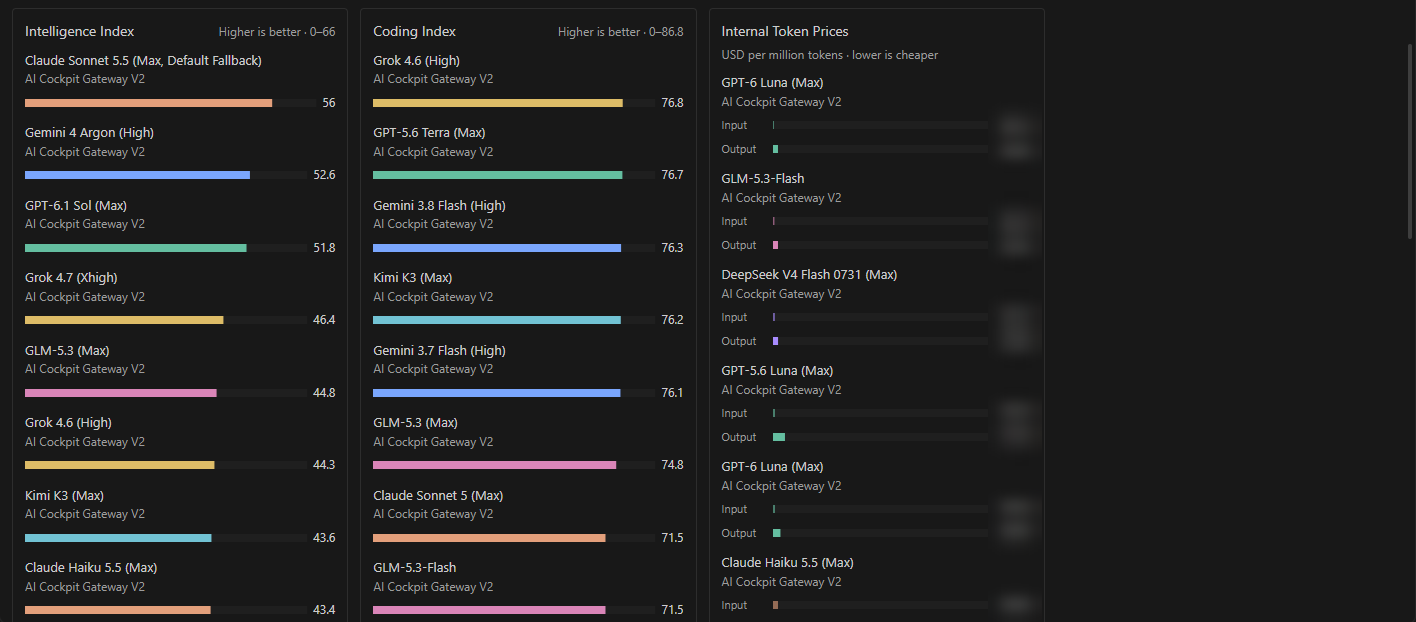
Higher scores are better; lower token prices are cheaper.
Apply a model combination
Model combinations suggests main, subagent, and small models for three profiles: Economy, Balanced, and Quality. The suggestions are heuristics, not guarantees.
- Adjust the relative use of each role if your work leans on subagents or quick tasks.
- Choose a profile and review the suggested models and their estimated cost.
- Under Apply to, choose Global defaults or This project.
- Select Apply.
The combination becomes the default for new sessions. When you opened the panel from a chat, its main model also changes from the next message; a response in progress is not interrupted. Other open chats keep their models.
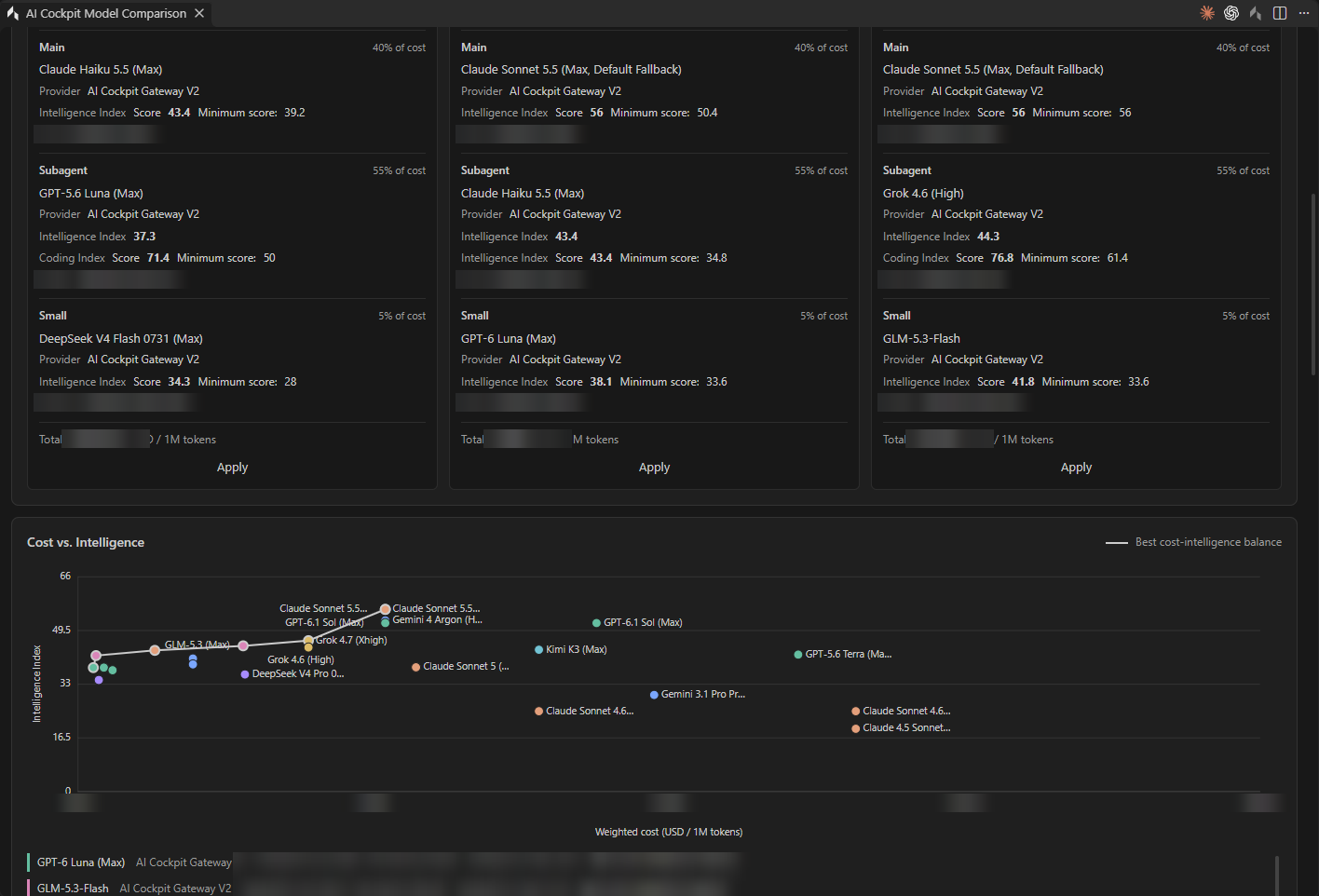
Each profile shows the suggested models, their share of cost, and the estimated total.
Review the result in Settings → Models.