Configure Models and Providers
Sign in to use the models supplied through your AI Cockpit organization, or connect a supported provider directly. Then choose the defaults used for new work.
Check the account first
Open Settings → Profile and confirm the active organization. Organization membership changes which models and services appear.
Connect a provider
- Open Settings → Providers.
- Select the provider you want to use.
- Complete the authentication or credential flow shown by the extension.
- Confirm that the provider shows as connected.
Use the connection flow instead of pasting credentials into Chat or committing them to project files.
To check which gateway models respond, select Test models in Settings → Providers. It sends a minimal request to each model. Models you hide appear under Hidden models, where you can show them again.
Configure model defaults
Open Settings → Models to set:
| Setting | Used for |
|---|---|
| Default Model | New conversations. |
| Small Model | Quick tasks such as session titles, commit messages, and prompt enhancement. |
| Subagent Model | Delegated subagent work, with its own reasoning effort. Leave it unset to use the calling agent's model. |
| Compaction model | Automatic and manual compaction. Leave it unset to use the chat model. |
| Speech to Text Model | Voice input. Set Speech to Text Base URL and Speech to Text API Key only to use your own OpenAI-compatible transcription service. |
Turn on Hide Prompt-Training Models to hide gateway models whose providers may use your prompts for training.
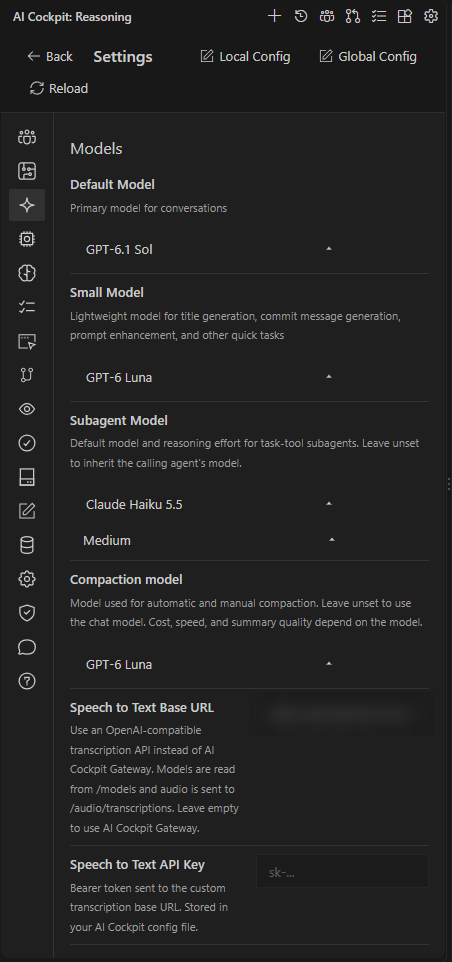
Settings → Models sets the models used for each kind of work.
To choose defaults from benchmarks and prices, use Compare Models (pre-release).
Select a model for the current session
Settings sets defaults. To change the active session, use the model selector below the Chat prompt or type /models, and type /variant to choose reasoning effort when the model offers it.