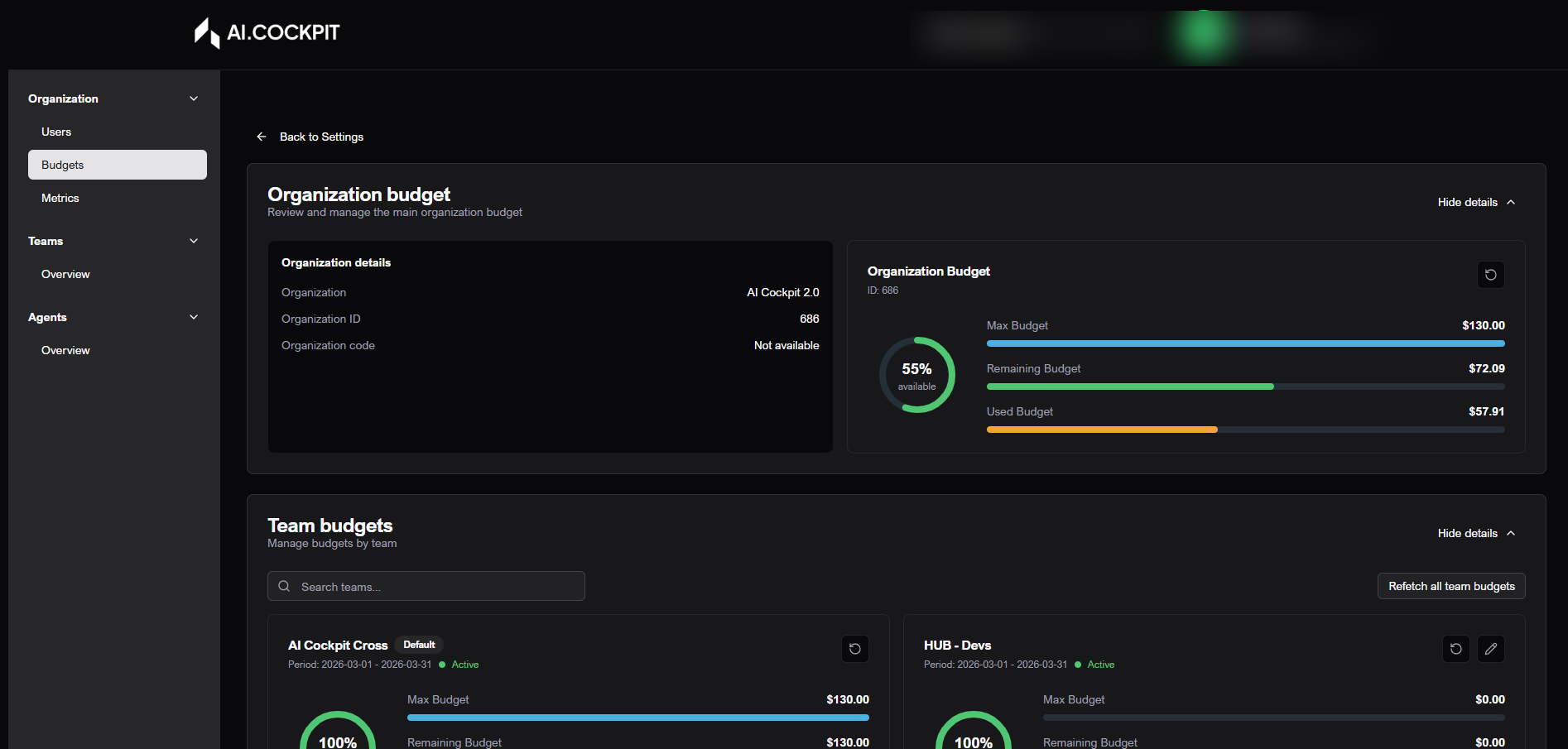
Settings - Budgets
Budgets control AI spending limits for the organization and for each team. Team budgets must stay within the available organization budget.
When to use
- Use Budgets to review organization spending limits and current usage.
- Use it to check team budget status by period.
- Use it to update a team spending limit when your role allows it.
Before you start
- Confirm the active organization.
- This section appears only for users with administrative access.
- The organization budget is shown as the overall limit.
- Some teams, such as the default team, may have editing restrictions.
Step by step: review the organization budget
- Open Settings > Budgets.
- Open the Organization Budget section.
- Review maximum limit, amount used, and remaining amount.
- Check the displayed period.
Step by step: review team budgets
- Open the Team Budgets section.
- Use search to find a team.
- Review status, period, limit, usage, and available amount.
- Use refresh if the values look outdated.
Step by step: edit a team budget
- Find the team.
- Click the edit action.
- Enter the new maximum budget.
- Check the allowed range and validation messages.
- Save.
Understand the rules
| Rule | What it means |
|---|---|
| Greater than zero | The budget value must be positive. |
| Not below used amount | The new limit cannot be lower than what the team has already used. |
| Within organization budget | The team limit must fit inside the available organization budget. |
| Default team restrictions | The default team may have limited editing options. |
| Refresh data | Use refresh or try again if organization or team values do not load. |
Expected result
After saving, the team card should show the updated maximum budget and a status that matches the new limit and current usage.
Tips and common issues
- If the save button is disabled, review the budget value and validation message.
- If a team cannot be edited, it may have a restriction or your role may not allow it.
- If values look stale, refresh the budgets before making changes.
Flow image