Settings - Teams
Teams help organize users, separate budgets, and review data by group in AI Cockpit One.
When to use
- Use Teams to create groups for users in the organization.
- Use it to review team members.
- Use it to add users to a team or transfer users between teams.
Before you start
- Confirm the active organization.
- This section appears only for users with administrative access.
- A user can belong to only one team at a time.
- The default team should not be removed as part of a normal workflow.
Step by step: create a team
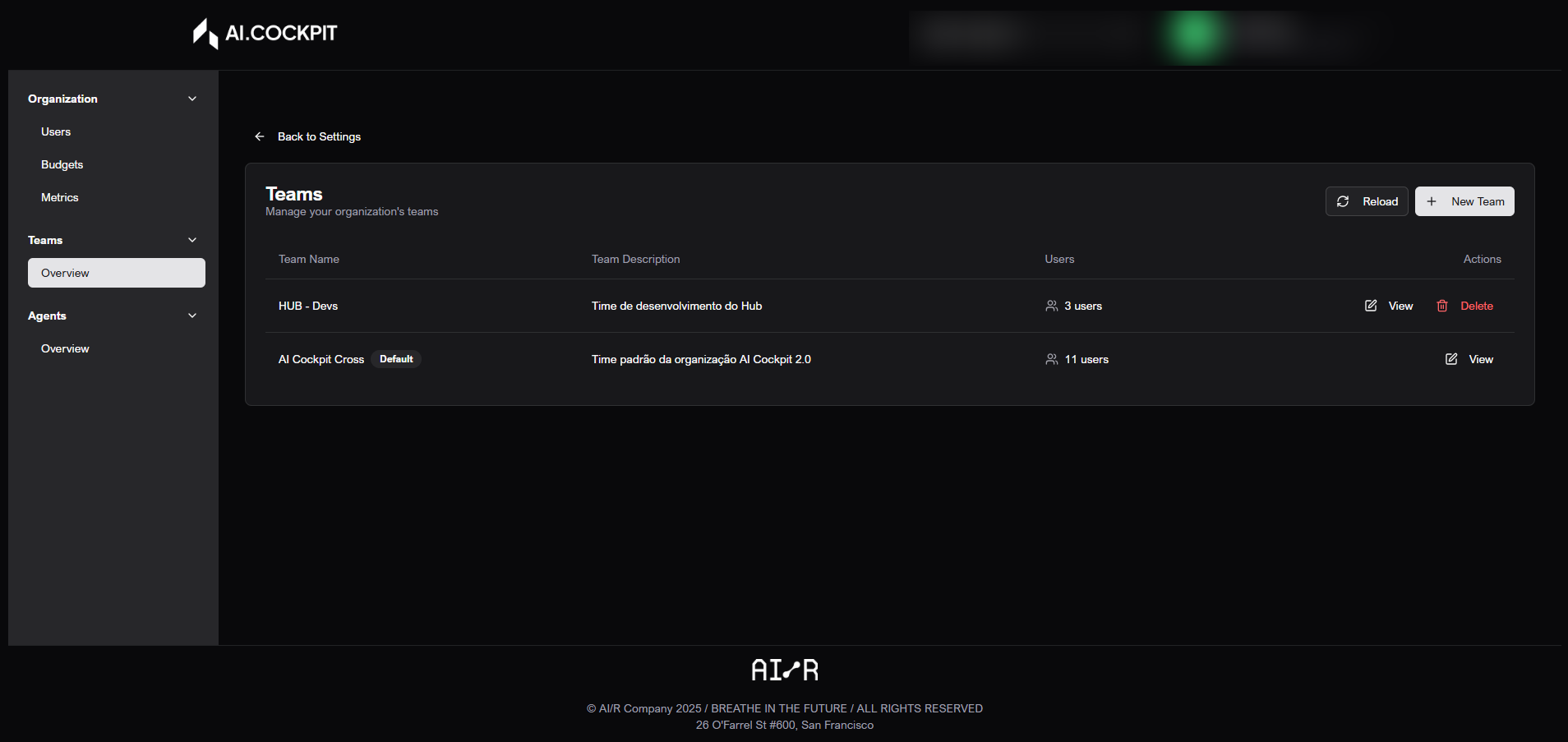
- Open Settings > Teams.
- Click New Team.
- Enter a name.
- Enter a description when needed.
- Save.
Step by step: edit a team
- Find the team in the list.
- Open the edit action.
- Update name or description.
- Save.
Step by step: view members
- In the team list, click View.
- The members screen opens for the selected team.
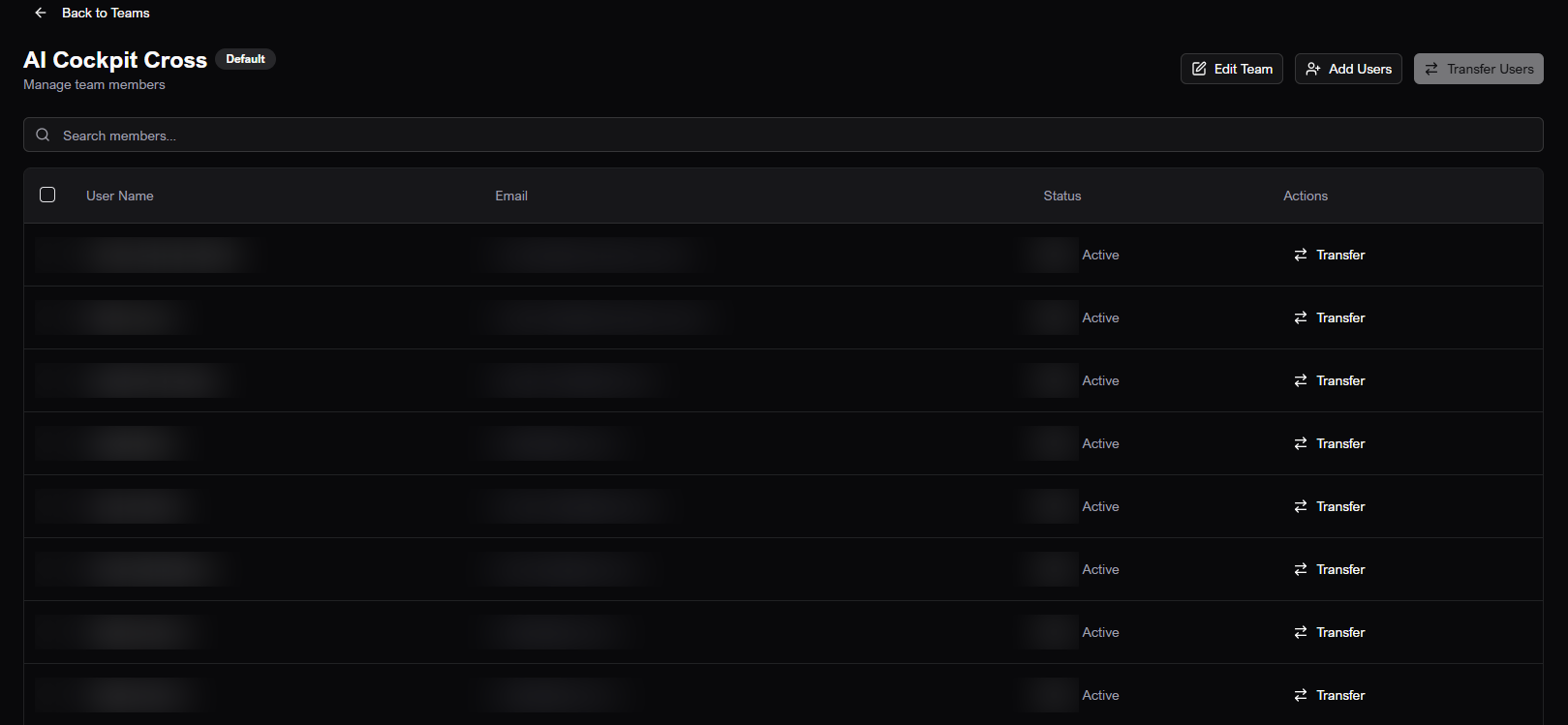
- Use search to find members.
- Use selection to prepare a bulk transfer when needed.
Step by step: add users to a team
- Open the members screen for the team.
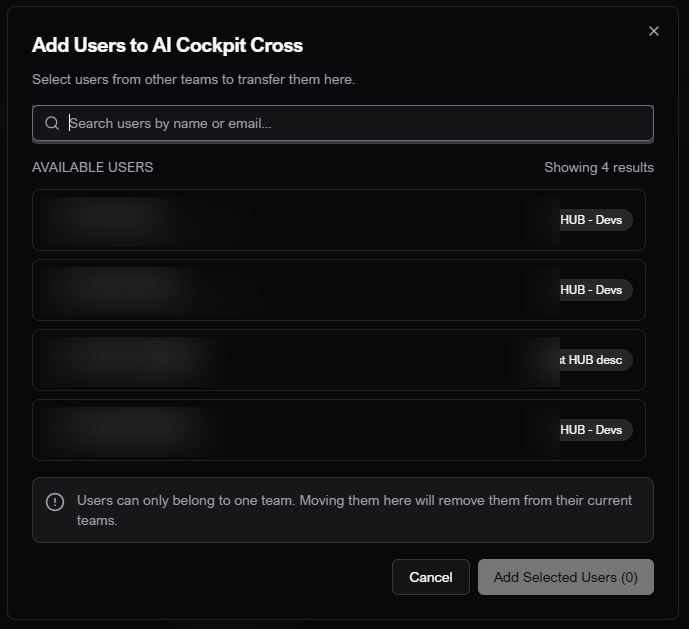
- Click Add Users.
- Search users by name or email.
- Select the users.
- Confirm the addition.
- Remember that moving a user to this team removes them from the previous team.
Step by step: transfer users
- Open the members screen for the team.
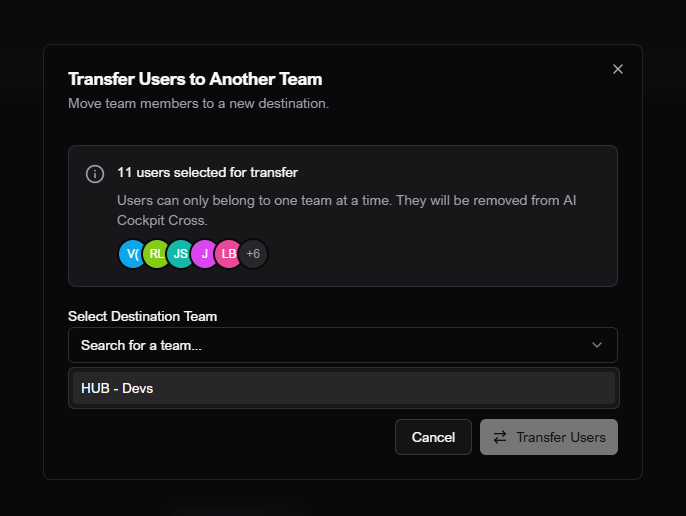
- Select one or more users.
- Click Transfer Users.
- Choose the destination team.
- Confirm.
- Wait for the success message.
Understand the screen
| Item | What it means |
|---|---|
| Team list | Shows teams in the active organization. |
| Members | Users currently assigned to the selected team. |
| Add users | Adds users from the organization to the team. |
| Transfer users | Moves selected users to another team. |
| Default team | Base team with restrictions; it should not be treated as removable in normal use. |
Expected result
Teams and member lists should update after creation, edits, additions, or transfers.
Tips and common issues
- If a user disappears from one team after being added to another, this is expected: each user belongs to only one team.
- If a team cannot be deleted, it may be the default team or your role may not allow the action.
- If the member list is empty, clear search and refresh the page.
Flow image
Overview
View team
Add users to team
Transfer users between teams