Run the server and open the browser interface
Start the AI Cockpit Reasoning CLI server when you want to use Reasoning from a browser or connect another terminal to the same runtime. The server uses the same project context and CLI configuration as the interactive terminal.
Start the server
Choose a fixed port so the browser address stays the same:
aic serve --port 4096
The command prints the address it is listening on. Without --port, the server picks a free port, so read the address from the output.
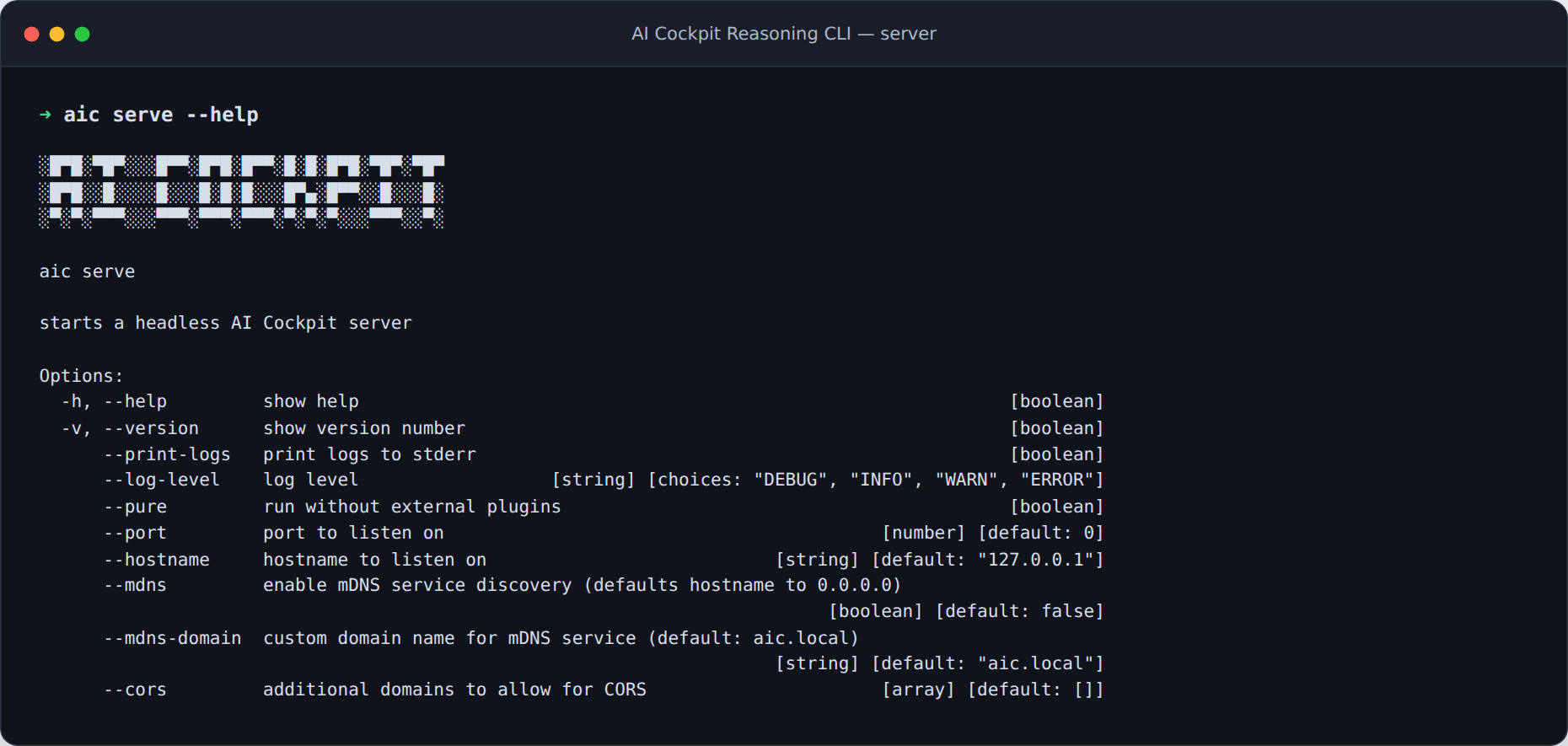
aic serve lists the network options for the local server.
Open the browser interface
Open http://127.0.0.1:4096/console/ in the browser. Replace the port when you started the server with another value.
Keep the terminal open while you use the browser interface. Press Ctrl+C in that terminal to stop the server.
Protect the server
The server listens on 127.0.0.1 by default, so only your computer can reach it. Set a password before you expose it on another address:
export AICOCKPIT_SERVER_PASSWORD="choose-a-strong-password"
aic serve --port 4096
The username is aic unless you set AICOCKPIT_SERVER_USERNAME. Without a password, the command warns that the server is unsecured.
Use --hostname to listen on another address and --cors to allow additional browser origins. Run aic serve --help for every network option.
Connect a terminal to the server
Attach the interactive terminal to a running server:
aic attach http://127.0.0.1:4096
Pass --password and --username when the server requires them, or rely on the same environment variables.
For a terminal-only workflow, use the interactive terminal. For automation, use headless execution.