Use the interactive terminal
The terminal user interface (TUI) is the interactive workspace of AI Cockpit Reasoning CLI. It keeps the conversation, tool activity, permission requests, model and agent selection, and session controls in one terminal window.
Open the TUI
Start it from the project you want the agent to work on:
cd path/to/your-project
aic
The current directory becomes the workspace for the session. The prompt footer shows the active agent and model, while the status area identifies the project and available integrations.
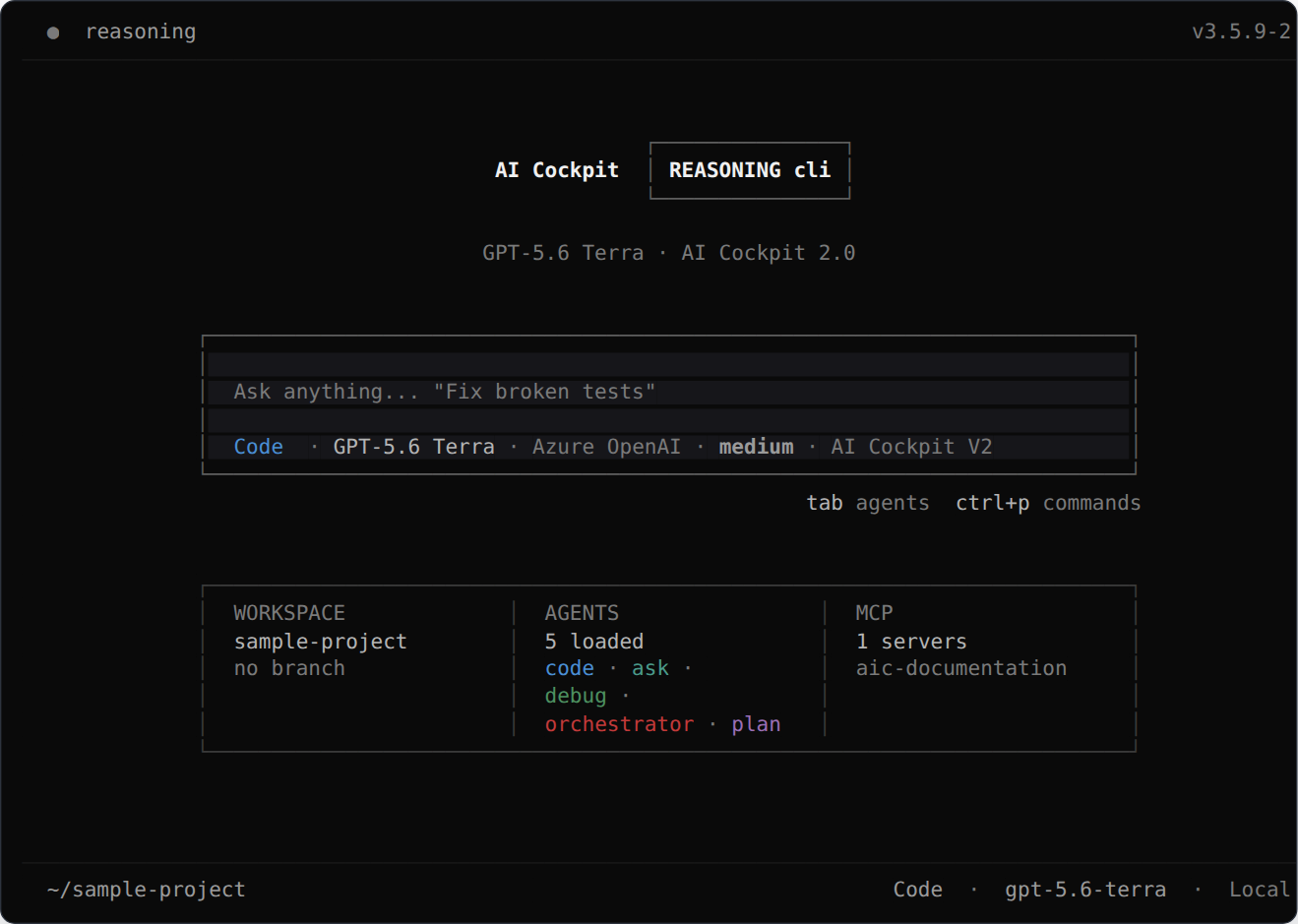
The home screen is ready for a request and shows the active workspace before the task starts.
Connect and choose a model
If the prompt shows No provider selected, enter /connect. Choose a provider with the arrow keys, press Enter, and complete the authentication flow. Press Esc to close a dialog without changing its selection.
Enter /models to choose a model. You can also press Ctrl+X, release the keys, and then press M. Ctrl+X is the default leader key, so shortcuts such as Ctrl+X M are sequences.
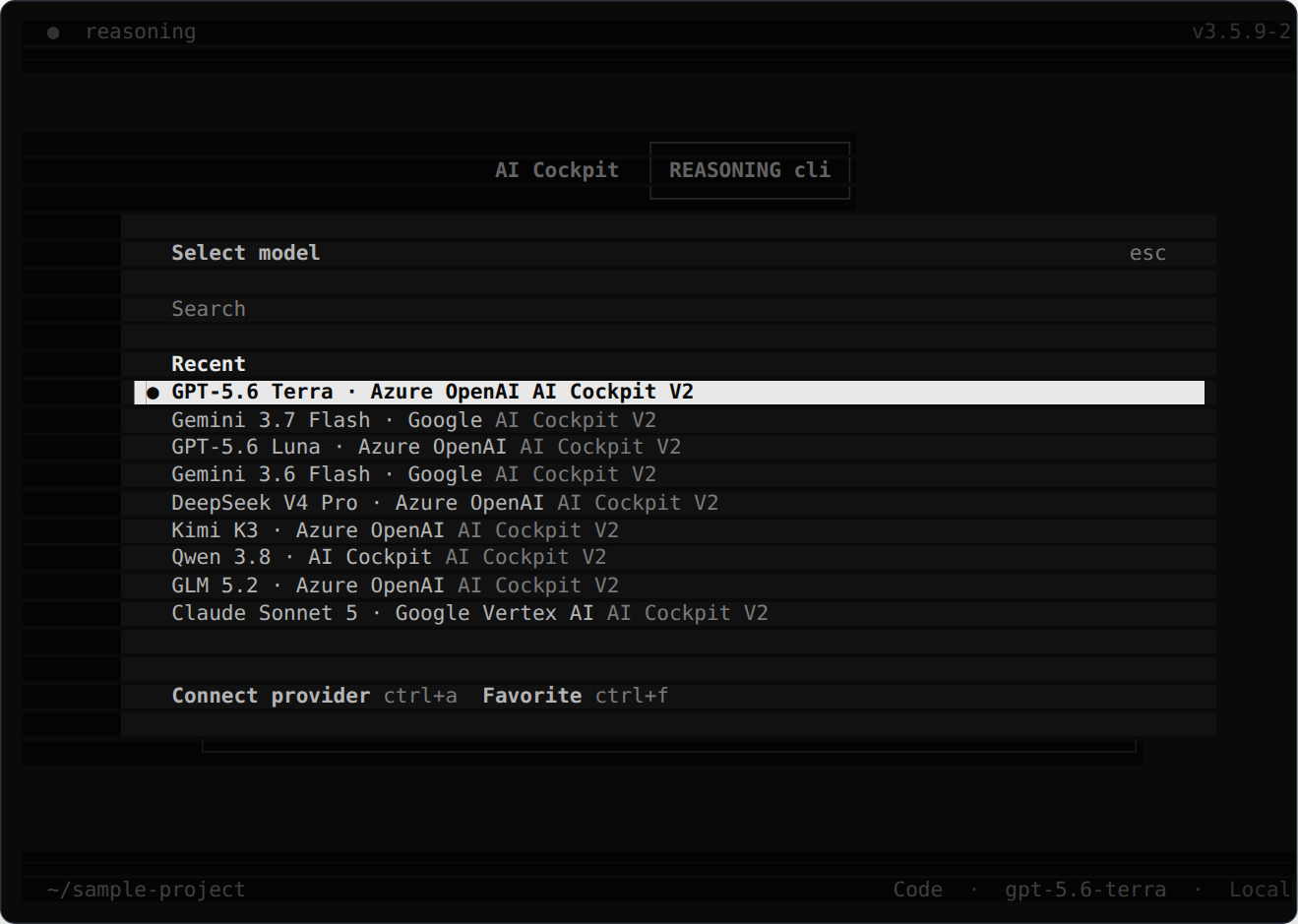
Search the models available from connected providers and press Enter to select one.
Type to filter, navigate with the arrow keys, and press Enter to select. Ctrl+A opens the provider list, Ctrl+F toggles a favorite, and F2 cycles through recently used models from the main screen.
Send a request
Write the task in natural language and press Enter:
Review the authentication flow and explain where expired sessions are handled.
Use Shift+Enter, Ctrl+Enter, Alt+Enter, or Ctrl+J to add a line without sending. Type @ to find project files or agents, and type / to browse commands.
While the task runs, the conversation shows responses and tool actions as they happen. Use Page Up and Page Down for long output. Press Esc to interrupt the current task; another press may be required to protect against accidental interruption.
Find actions in the command palette
Press Ctrl+P to open the command palette. Search by typing, move with the arrow keys, press Enter to run an action, or press Esc to return to the prompt.
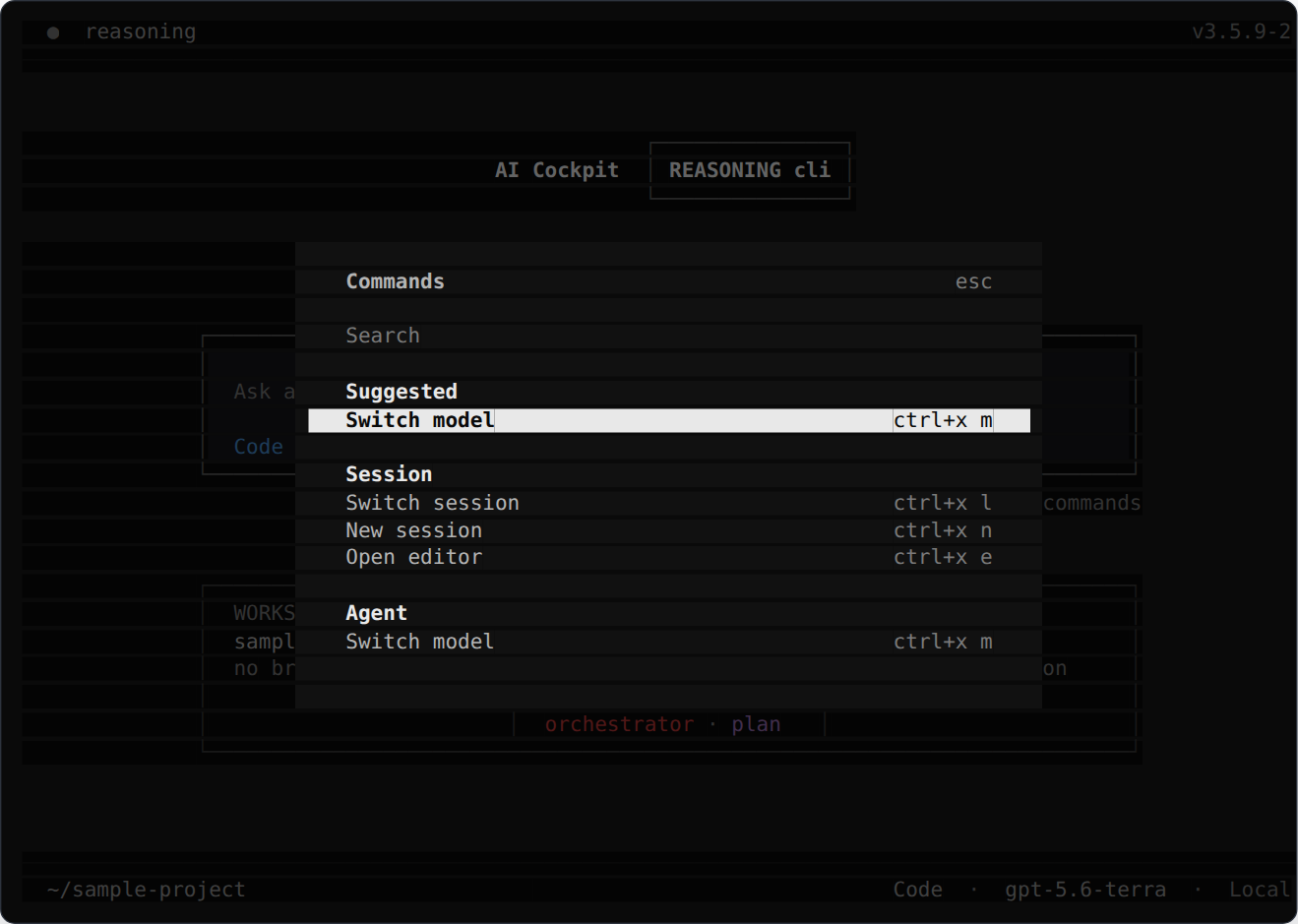
The palette groups actions by purpose and displays their configured shortcuts.
Common slash commands include:
| Command | Action |
|---|---|
/connect | Connect a model provider. |
/models | Open the model selector. |
/agents | Open the agent selector. |
/sessions | Open recent sessions. |
/new | Start a new session. |
/mcps | Inspect and toggle MCP servers. |
/skills | Inspect available skills. |
/status | Show provider, MCP, plugin, and project status. |
/help | Show commands and keyboard shortcuts. |
/exit | Close the TUI. |
Work with agents, skills, and MCP
Press Tab to cycle through primary agents and Shift+Tab to move backward. Use /agents to search the complete list. The selected agent controls the instructions, tools, default model, and permissions used for a request.
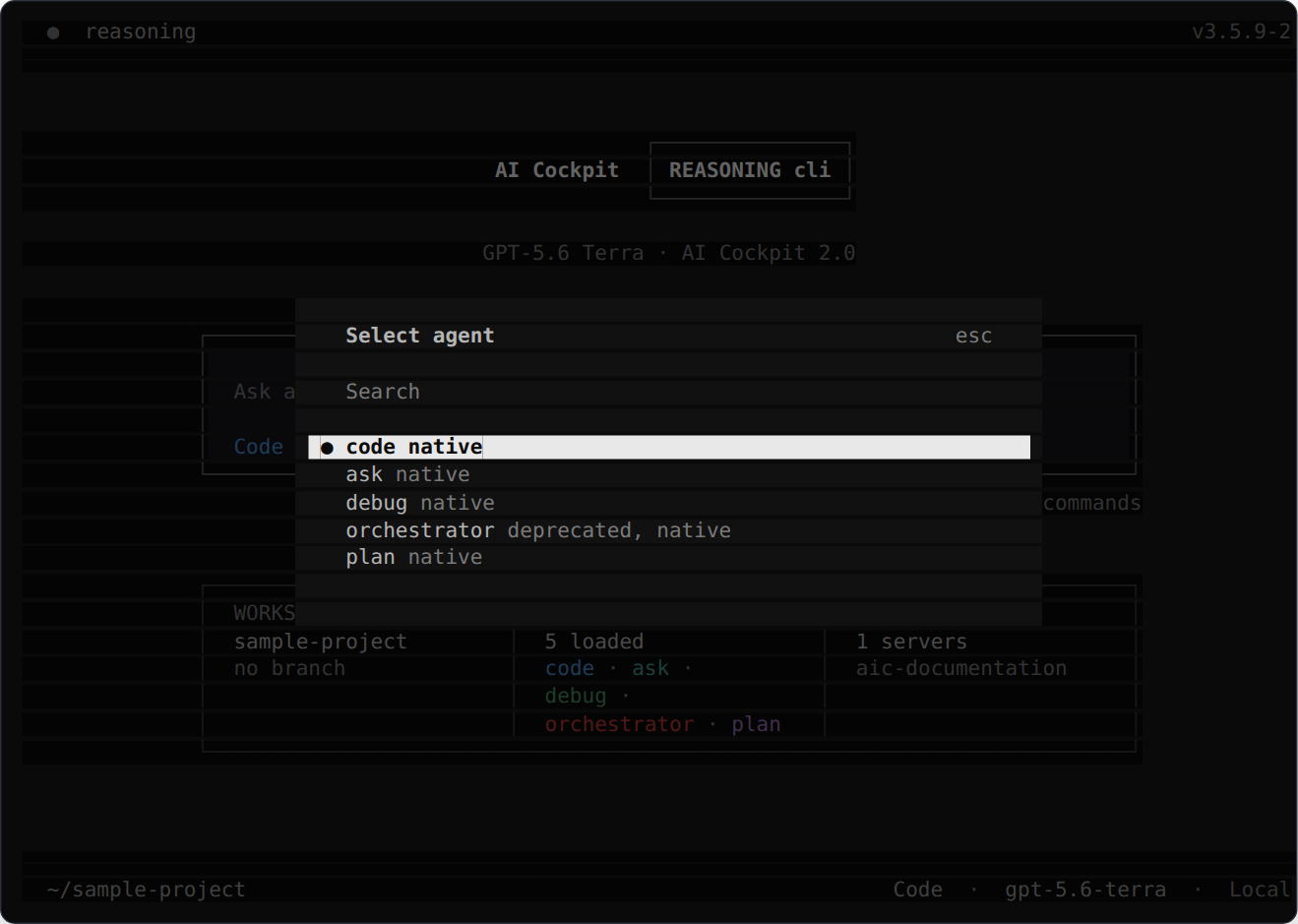
The selector describes each primary agent before you switch.
Use /skills to inspect specialized workflows discovered for the session. If you add or change a project skill, start a new session so AI Cockpit Reasoning CLI can discover it again.
Use /mcps to inspect configured MCP servers. Highlight a server and press Space to enable or disable it. If a remote server needs authentication, follow the command shown in the TUI or run aic mcp auth server-name in another shell. /status provides a broader view for troubleshooting a connection.
Review permission requests
The TUI pauses when an action needs a decision. Read the command, path, URL, or diff before choosing:
- Allow once approves only this request.
- Allow always creates a persistent approval for the patterns shown in the confirmation step.
- Reject blocks the action. For delegated tasks, you can explain what the agent should do differently.
Move with the left and right arrow keys, or H and L, then press Enter. Press Esc to reject. Ctrl+F expands or minimizes a long permission panel. Protected configuration files do not offer Allow always.
Permissions control the actions available to the agent; they are not an operating-system sandbox. Carefully inspect broad commands and access to external paths.
Continue and organize sessions
Enter /sessions or press Ctrl+X L to open the session selector.
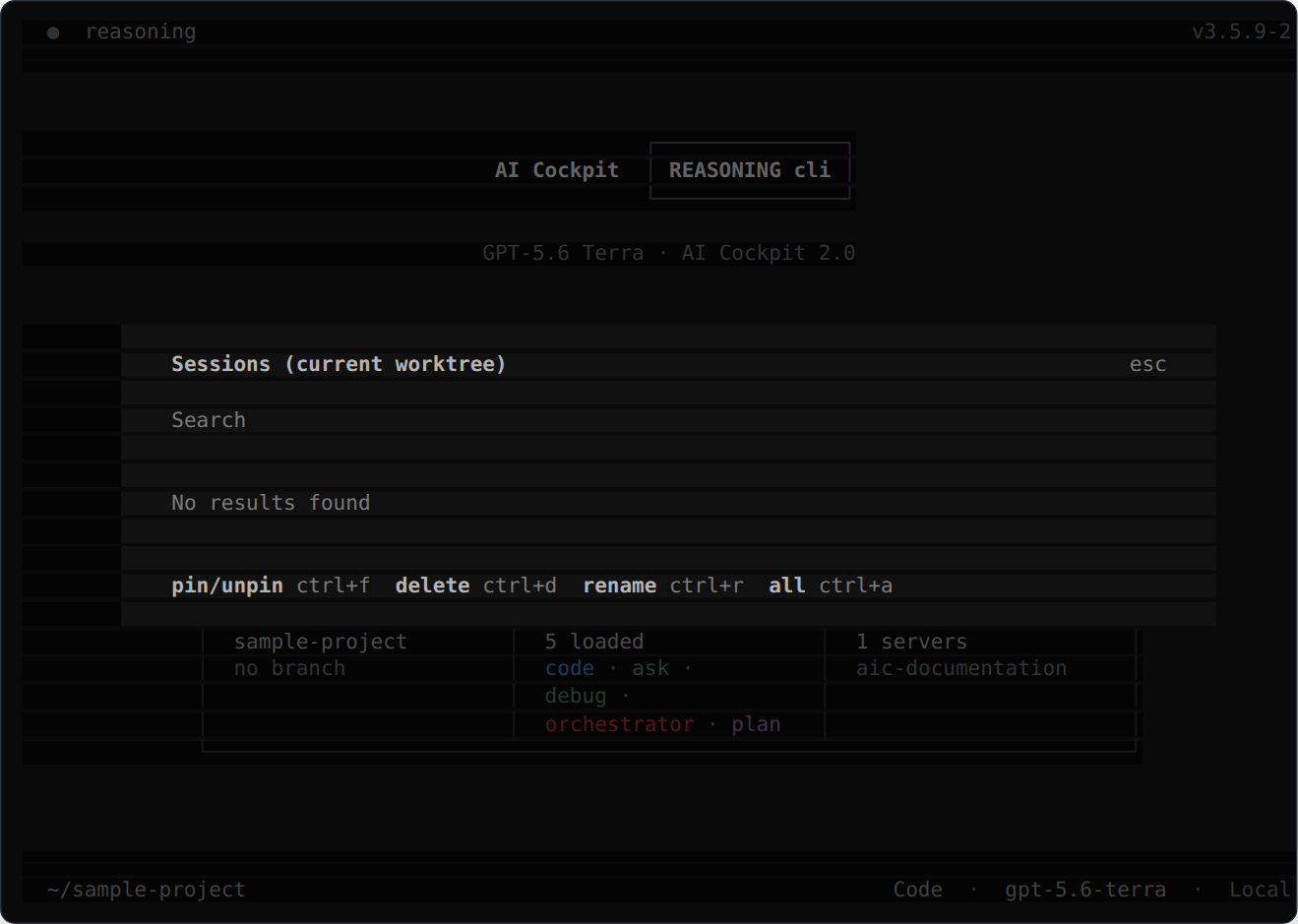
Search, resume, pin, rename, or delete a session from the current worktree.
Press Enter to resume a session. Ctrl+A switches between the current and all worktrees, Ctrl+F pins a session, Ctrl+R renames it, and Ctrl+D asks for confirmation before deletion.
Inside a conversation, /rename, /fork, /undo, /redo, and /compact manage the current session. /fork branches from existing context; /compact summarizes a long conversation to recover model context.
Essential keyboard shortcuts
| Shortcut | Action |
|---|---|
| Enter | Send the prompt or confirm a selection. |
| Shift+Enter | Add a line to the prompt. |
| Ctrl+P | Open the command palette. |
| Tab / Shift+Tab | Cycle through primary agents. |
| F2 / Shift+F2 | Cycle through recent models. |
| Ctrl+X M | Open models. |
| Ctrl+X A | Open agents. |
| Ctrl+X L | Open sessions. |
| Ctrl+X N | Start a new session. |
| Ctrl+X S | Open status. |
| Ctrl+Alt+K | Show keyboard shortcuts. |
| Esc | Close a dialog or interrupt a task. |
Run /help or press Ctrl+Alt+K to see the bindings available in your configuration.