Configuring Agents from One
Product AI agents and their knowledge bases are configured through the One Lens section. This is where administrators and managers define the agent's persona, connect it to a data source, and upload the documents that form its knowledge base.
Only users with Admin or Manager roles can access the Lens section and configure agents.
Accessing the Lens Section
The Lens section is available in the One left navigation panel.
- Sign in to AI Cockpit One.
- In the left navigation, click Lens to expand the section.
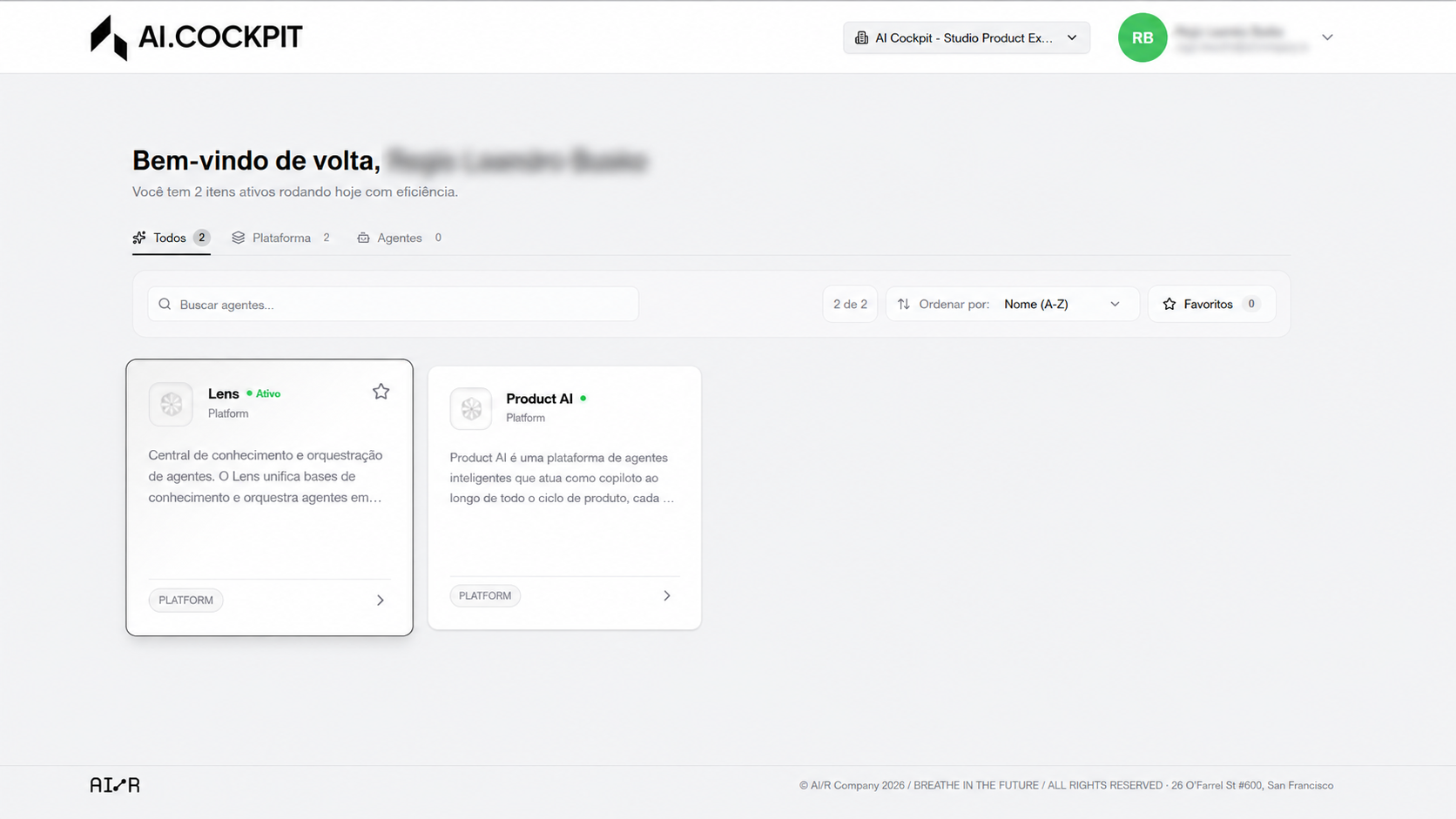
- The Lens panel opens, showing the available configuration options.
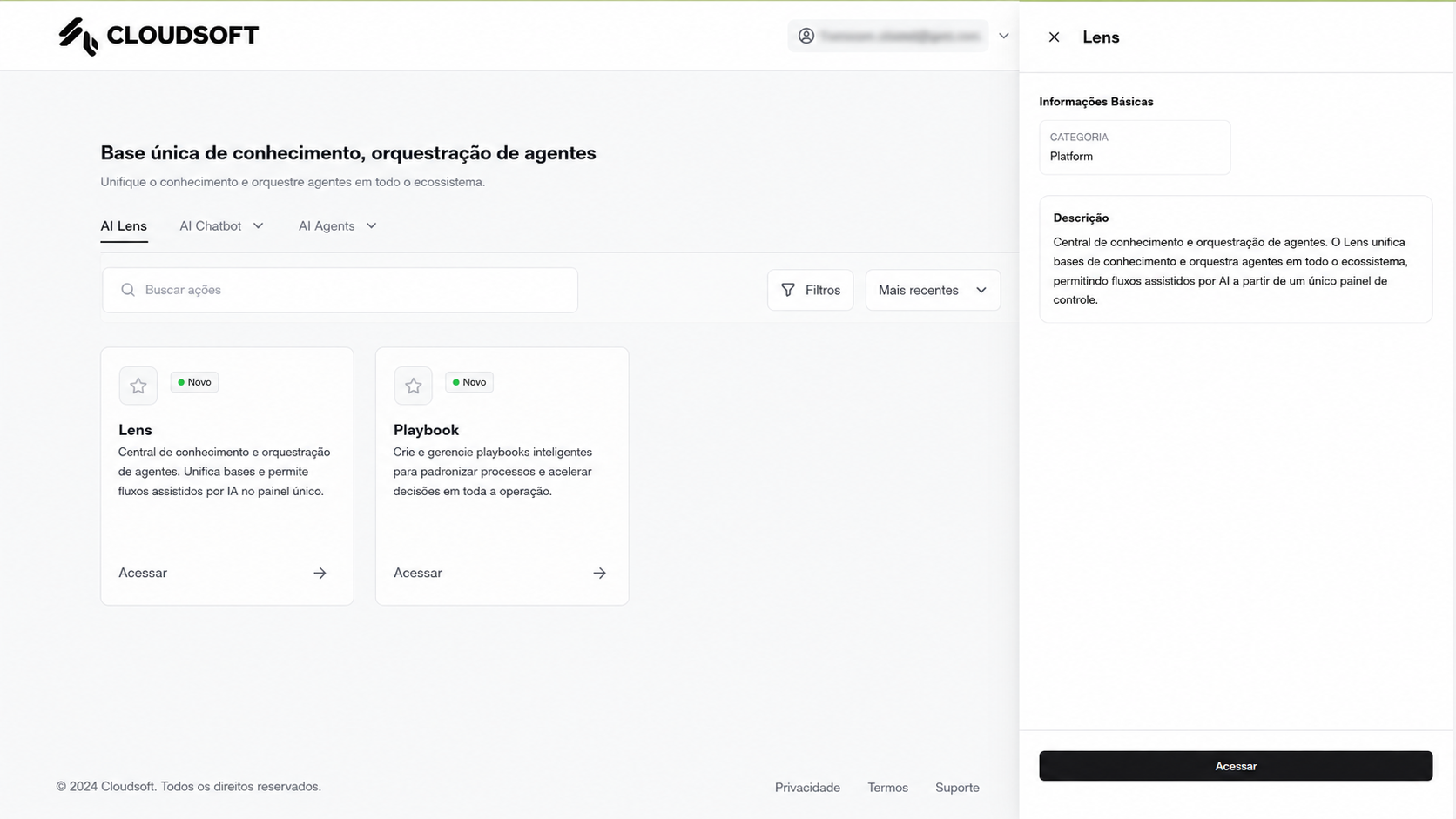
Managing Agents
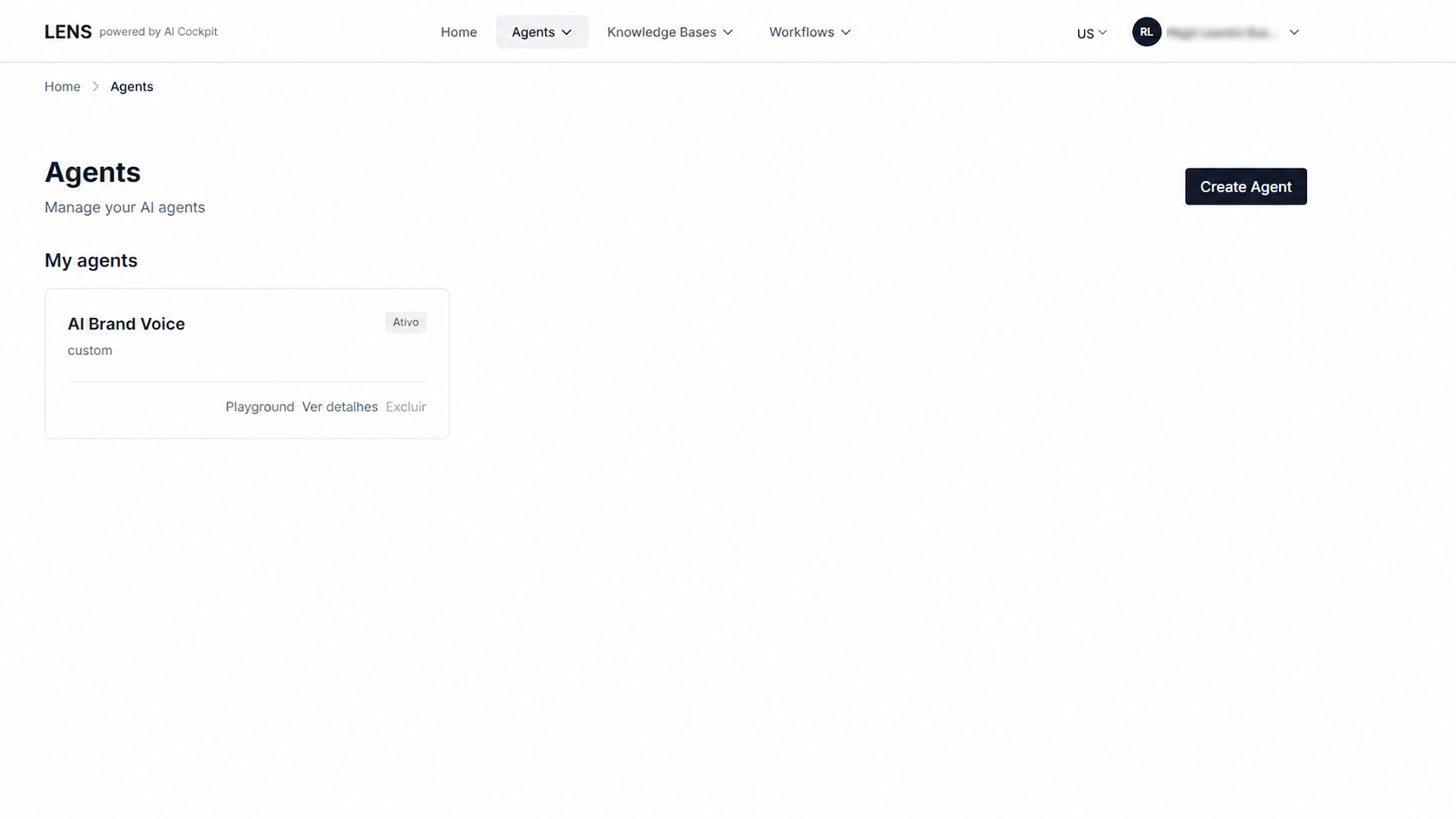
Viewing the Agent List
Click Agents in the Lens panel to see all agents configured for your organization.
Creating an Agent
- Click Create Agent.
- Fill in the agent configuration form:
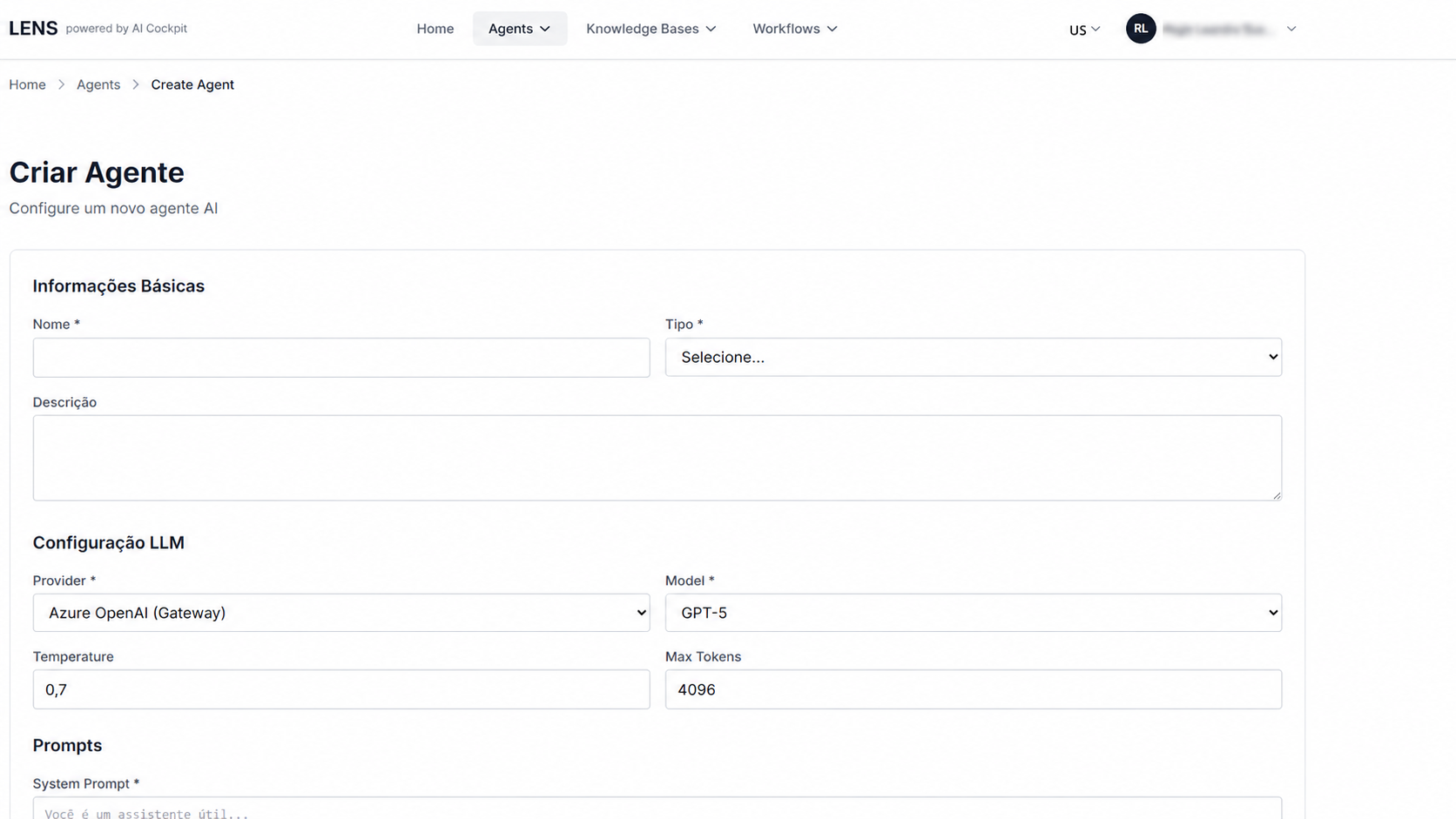
| Field | Description |
|---|---|
| Name | The agent's display name shown to users in Product AI |
| Description | A short summary of what the agent does |
| Persona | The agent's behavioral instructions — defines its tone, focus, and response style |
| API Key | The connection credential for the agent's data source |
- Click Save to create the agent.
The persona field is the most important configuration for an agent. A well-written persona ensures the agent responds consistently and accurately to user queries. Describe the agent's role, the topics it should focus on, and any constraints on its responses.
Managing Knowledge Bases
A knowledge base is a collection of documents that the agent uses to answer questions. Each agent can be linked to one or more knowledge bases.
Viewing Knowledge Bases
Click Knowledge Bases in the Lens panel to see all knowledge bases configured for your organization.
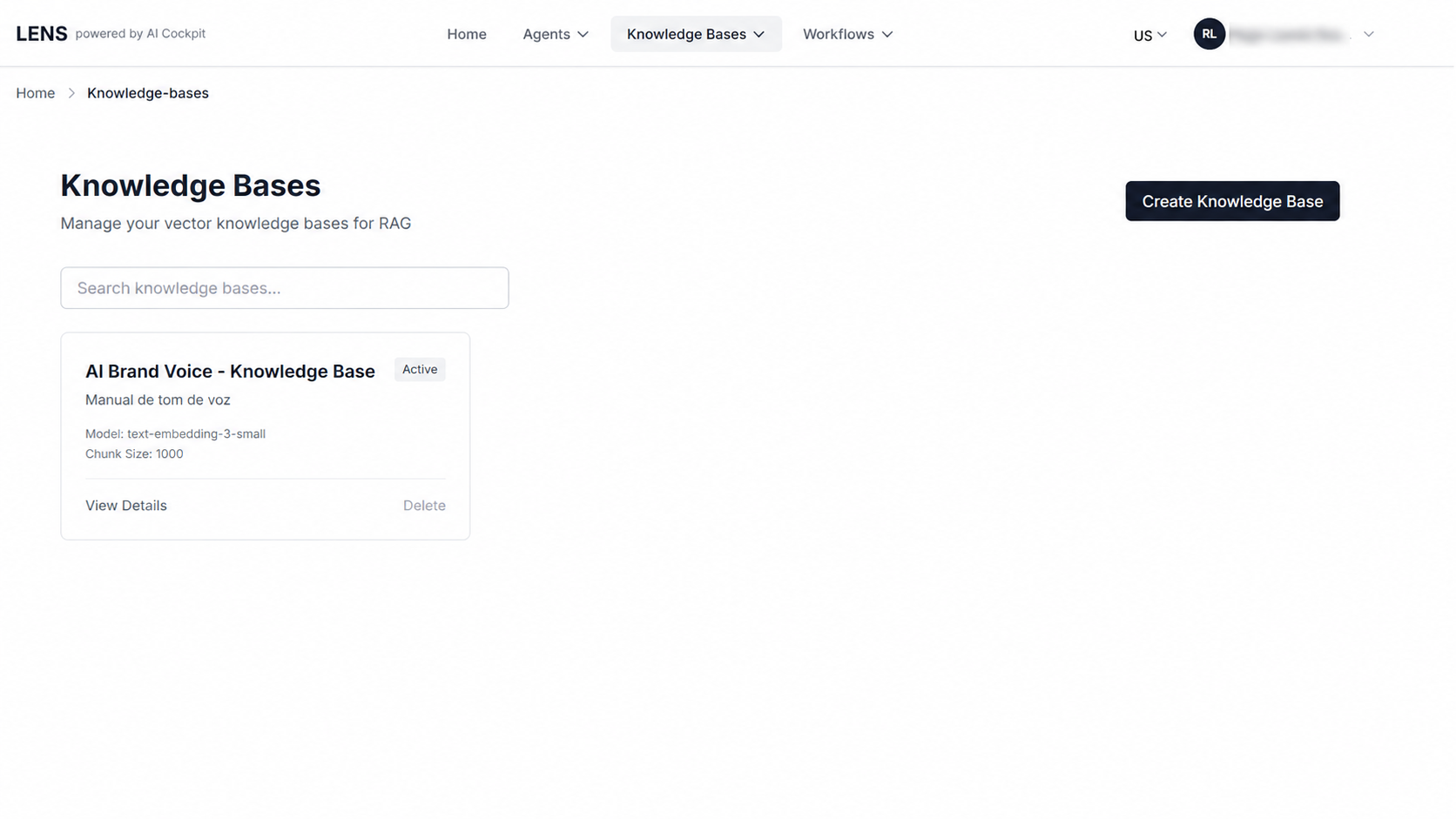
Creating a Knowledge Base
- Click Create Knowledge Base.
- Fill in the required fields:
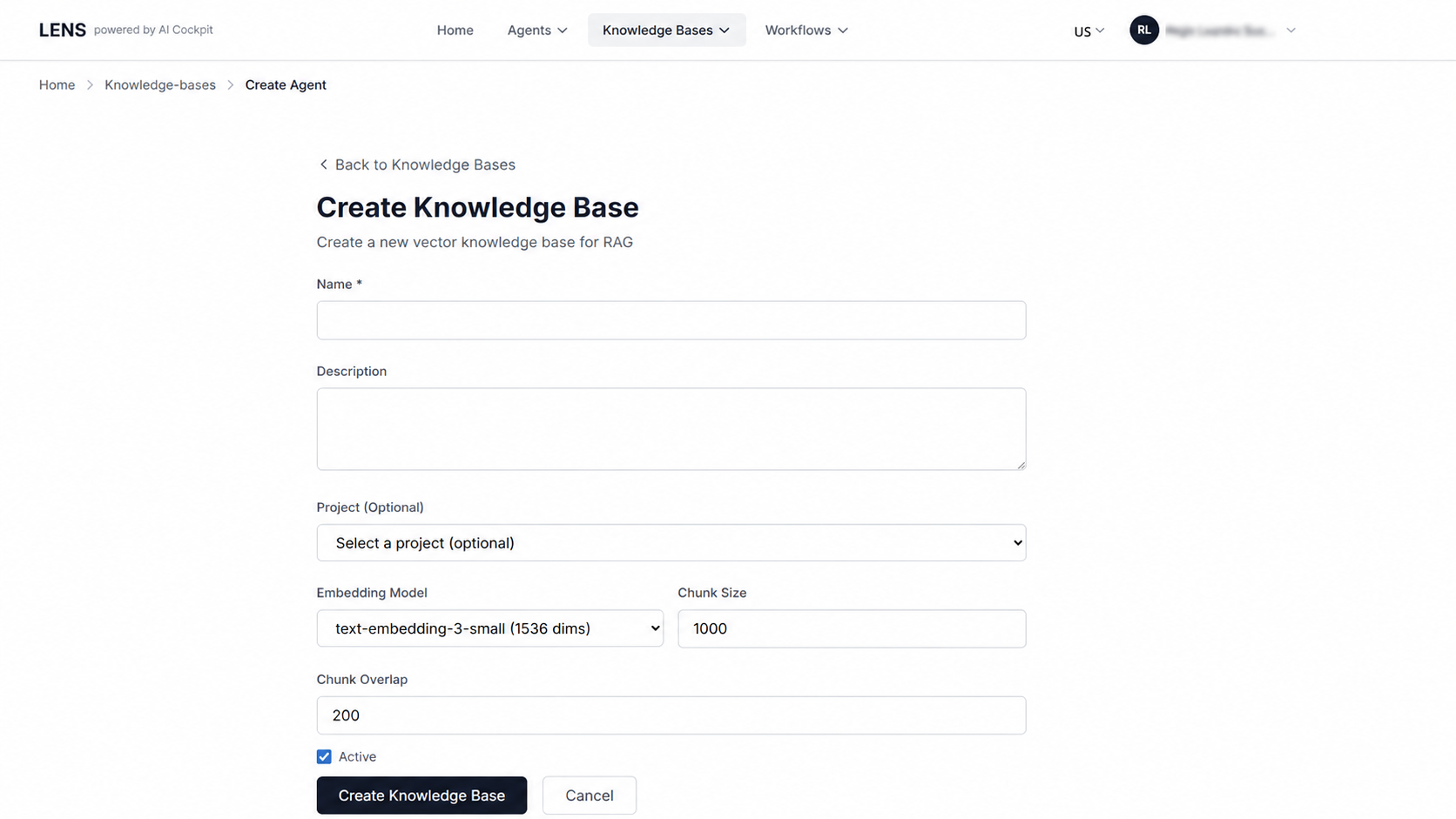
| Field | Description |
|---|---|
| Name | A descriptive name for the knowledge base |
| Description | A brief summary of the content it contains |
- Click Save.
Adding Files to a Knowledge Base
After creating a knowledge base, upload the documents that the agent will use as its reference material.
- Open the knowledge base from the list.
- Click Add Files.
- Select the files to upload.
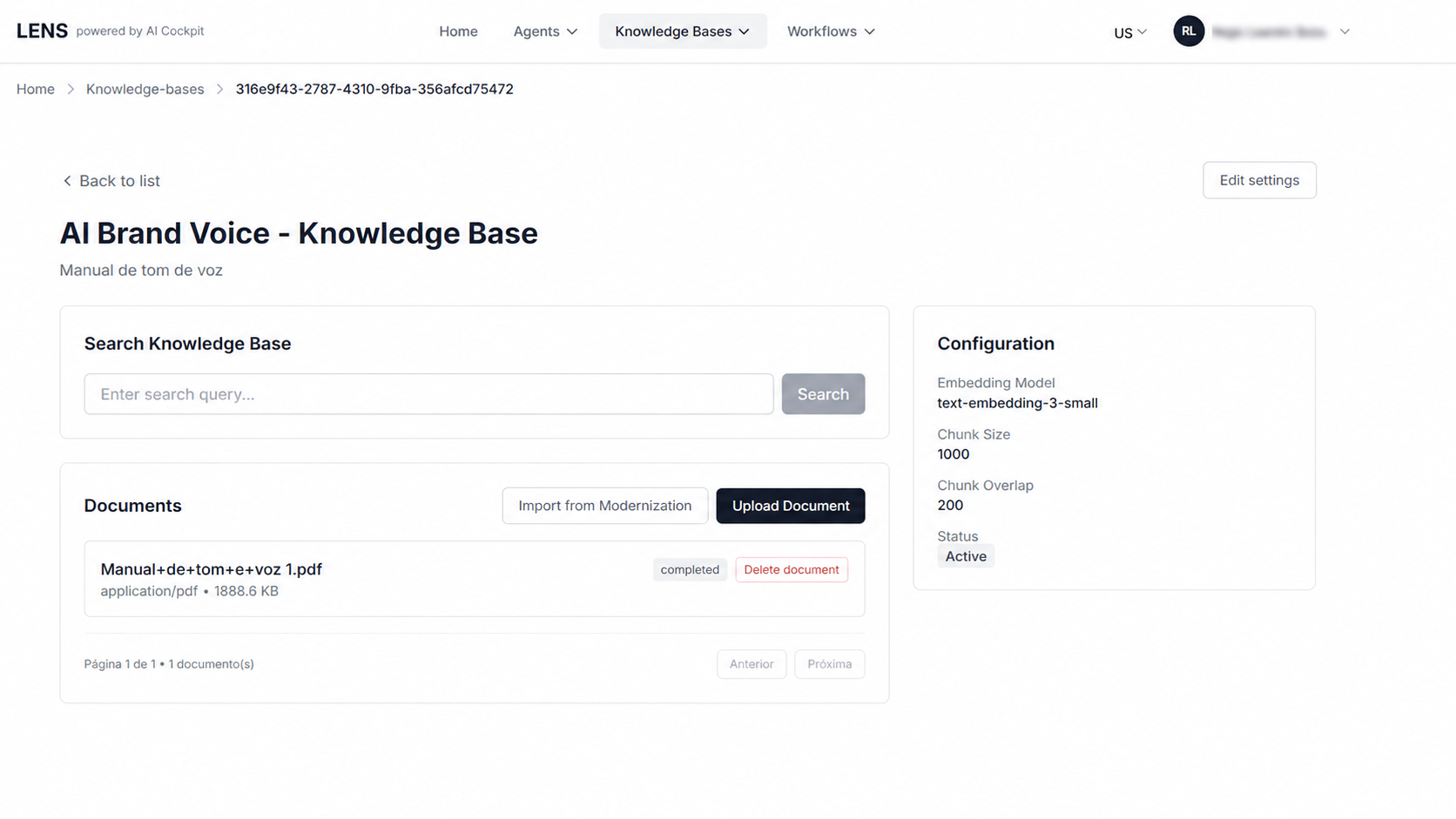
Common supported formats include PDF, TXT, and DOCX. Check the upload dialog for the complete list of accepted formats and maximum file size.
Next Steps
- Managing Agents — create and manage agents directly within Product AI
- Troubleshooting — resolve common issues with agent configuration