Start Your First Reasoning Session
Begin with a small request that has an obvious result. This makes it easy to understand the transcript, tool activity, and permission flow before asking Reasoning to change a larger part of the project.
Choose how you want to work
The first time you open Reasoning, it asks you to Choose how you want to work:
- Review first (Human in the Loop): asks before editing files or running commands, and expands reasoning, commands, and edits so you can follow them.
- High autonomy: edits files and runs commands in the workspace without asking, and collapses tool details.
The choice sets the starting permissions and display options once, and keeps any setting you already customized. For a first session, choose Review first. Select Skip for now to keep your current settings.
Change these options later in Settings → Auto-Approve and Settings → Display. To see the choice again, set the VS Code setting ai-cockpit-reasoning.agentWorkStyle to unset.
Open a session
- Open a project folder in VS Code.
- Open the Reasoning view.
- Select New Task if another session is already open.
- Confirm the agent and model below the prompt.
For a first session, choose an agent intended for questions or planning and ask for a read-only result. For example:
Explain what this project does, identify its main entry point, and list the
commands used to run its tests. Do not change files.
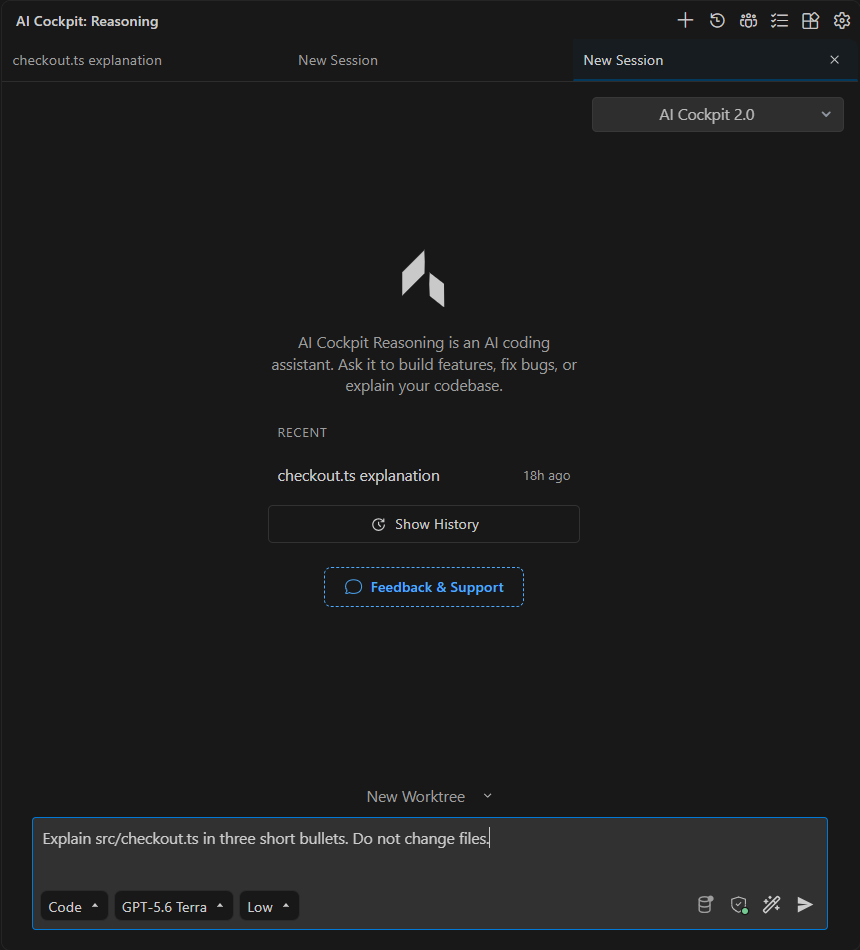
Before sending, confirm the request, active agent, model, and reasoning effort in the prompt.
Follow the work
Send the request and read the transcript as Reasoning works. Tool calls show how the agent inspected the project. If the agent asks a question or requests permission, review the operation and respond before it continues.
When the response finishes, verify the cited files and commands in the project. Ask a follow-up in the same session when it depends on that result.
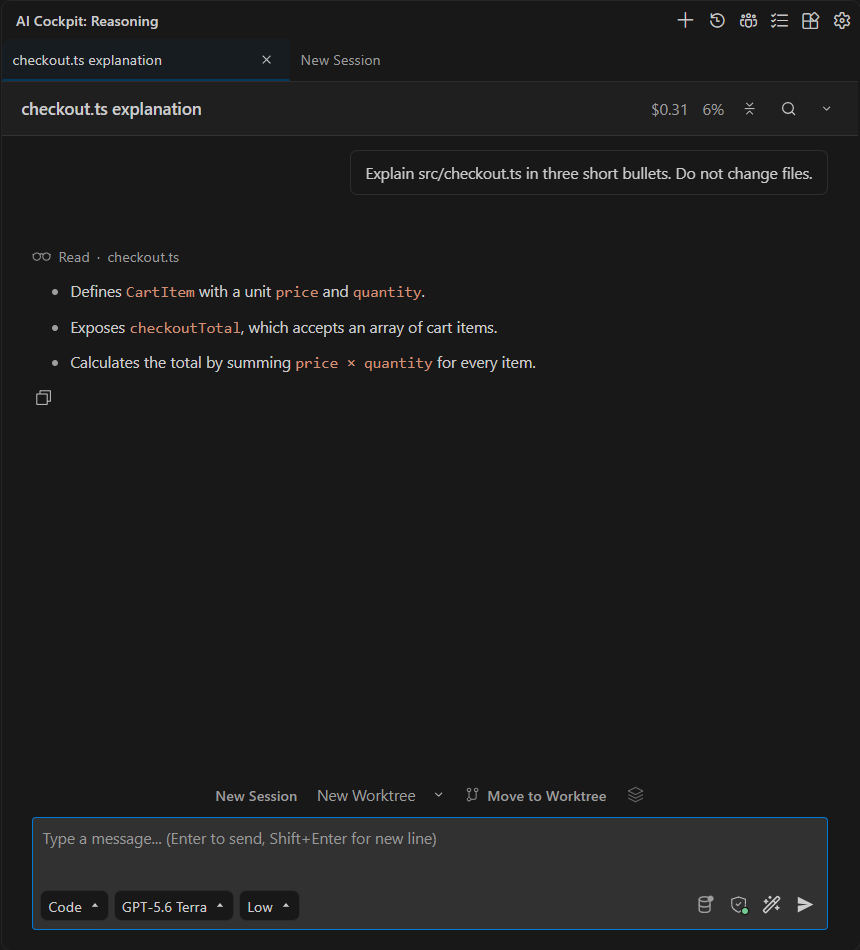
The completed session keeps the request, inspected file, and result in the same transcript.
Start unrelated work separately
Use New Task or /new for an unrelated request. Keeping unrelated work in separate sessions makes each transcript easier to understand and resume.
Next, learn how to choose an agent, model, and reasoning effort or review the complete Chat interface.