Sign In to AI Cockpit Reasoning
Sign in to load the organizations, models, and capabilities available to your AI Cockpit account.
Sign in
- Open the Reasoning view from the VS Code Activity Bar.
- Select Sign in to AI Cockpit.
- Complete authentication in the browser.
- Return to VS Code and wait for the profile to load.
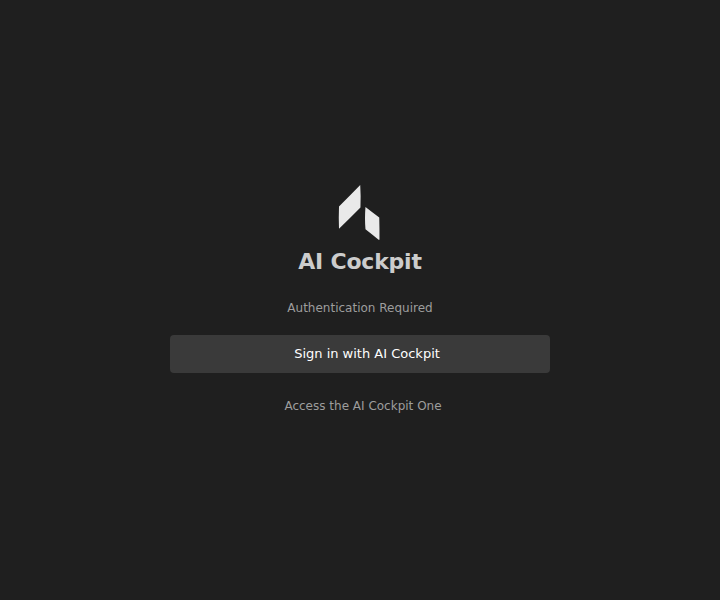
Sign in from the Reasoning view, then return to VS Code after browser authentication.
You can also run AI Cockpit: Sign in to AI Cockpit from the Command Palette.
Select an organization
- Open Profile and Settings from the Reasoning view.
- Select Profile.
- Open the account selector.
- Choose the organization you want to use.
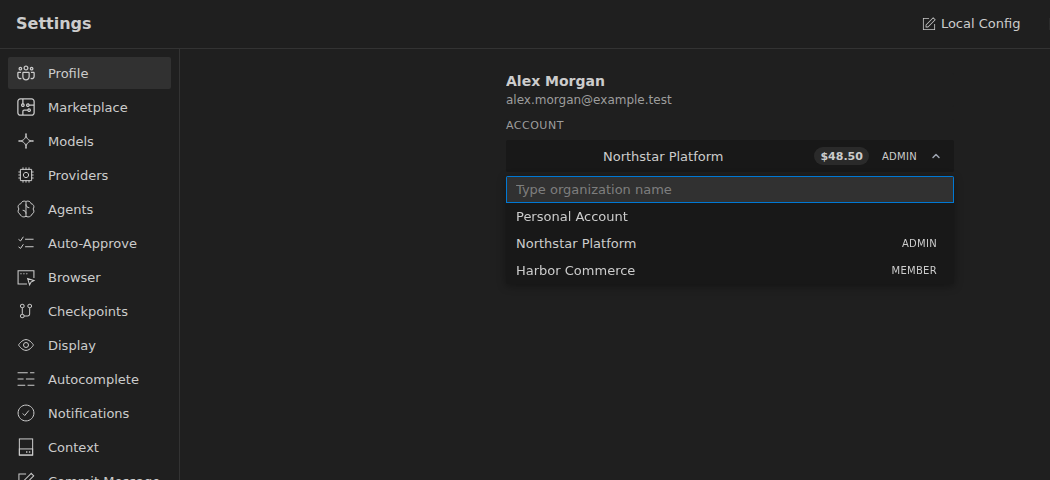
Search the organizations available to the account and select the one for the next sessions.
The active organization determines which organization-provided models and services are available. Allow the extension to refresh before starting a session after changing organizations.
If an expected organization does not appear, confirm your membership with its administrator. See Troubleshoot authentication and organization access if the browser sign-in does not return to VS Code.