Review Agent Manager Changes
Review a worktree's changes before you apply them, open a pull request, or delete the worktree.
Open the diff
- Select the worktree or one of its sessions.
- Press Ctrl+D (Cmd+D on macOS), or run AI Cockpit Reasoning: Agent Manager: Toggle Diff Panel.
- Select a file in the list to see its changes.
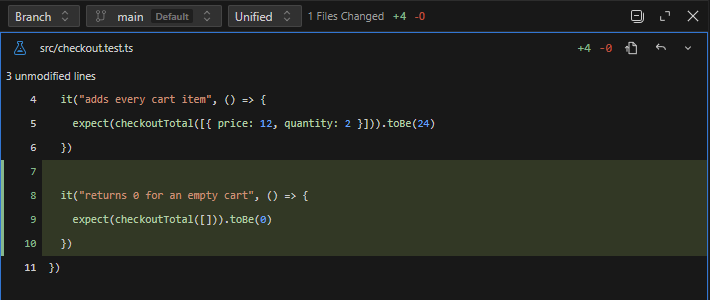
The diff panel header shows the scope, the base branch, the view style, and the totals.
Choose what to compare
| Scope | Shows |
|---|---|
| Branch | Everything on the branch compared with its base: committed, staged, unstaged, and untracked changes. |
| Staged | Changes added with git add, as they will appear in the next commit. |
| Unstaged | Modified files not yet staged, plus new untracked files. |
| Session | Files the current session changed, based on per-turn snapshots. Resets with a new session. |
The scopes offered depend on the selection; the local checkout offers Branch, Staged, and Unstaged. For Branch, use the base branch picker to compare against another branch. Switch between Unified and Split views; Reasoning remembers your choice.
Markdown files can be shown rendered: toggle it from the file header, or turn on rendering by default with ai-cockpit-reasoning.diff.renderMarkdown. Images show Before and After previews, and large files start collapsed.
Comment and send feedback to the agent
- Select a line, or drag across several lines in one gutter, to add a comment.
- Write the comment and select Comment.
- Select Send to chat on one comment, or Send all to chat (Ctrl+Enter) to send every local comment to the session.
The agent receives each comment with its file and line, and continues the work. When the branch has a GitHub pull request, you can choose to send a comment to GitHub instead; see Work with pull requests.
Open, revert, or apply files
- Open file shows the file in the editor. Open opens the whole worktree in a new VS Code window.
- Revert file discards that file's changes in the worktree. It changes files on disk; it is not only a visual dismissal.
- Apply copies the selected worktree changes to your local branch. Choose the files, then select Apply now. Apply works on the full branch diff, so switch to the Branch scope first.
If applying finds conflicts, Agent Manager lists each file and the reason, such as a local file that differs from the expected version. Resolve the conflicts locally, or update the worktree and try again.
Preview documents
Open a file from the chat or the diff to preview it in the Documents panel. Switch between the preview and Show source, and read the comments attached to it.