Create Worktrees and Manage Sessions
Create a worktree when a task needs its own checkout and branch. Sessions opened in that worktree use its files and working directory.
Create a worktree quickly
Press Ctrl+Shift+N (Cmd+Shift+N on macOS) or run AI Cockpit: Agent Manager: New Worktree. Agent Manager creates a worktree from the default base branch and opens an empty session in it. Describe the task in that session.
When Pre-warm worktrees is on, a ready worktree is waiting in the background, so this takes only a moment. See Agent Manager settings.
Configure a new worktree
Use the full dialog when you want to set the name, branch, base, or several versions.
- Press Ctrl+N (Cmd+N on macOS) or run AI Cockpit: Agent Manager: Configure New Worktree.
- Optionally enter a worktree name.
- Describe the task for its first session, and attach images if they help.
- Select the agent, model, and reasoning effort.
- Open Advanced options to set the Branch name or choose another Base branch.
- Select Create Worktree, or press Ctrl+Enter (Cmd+Enter on macOS).
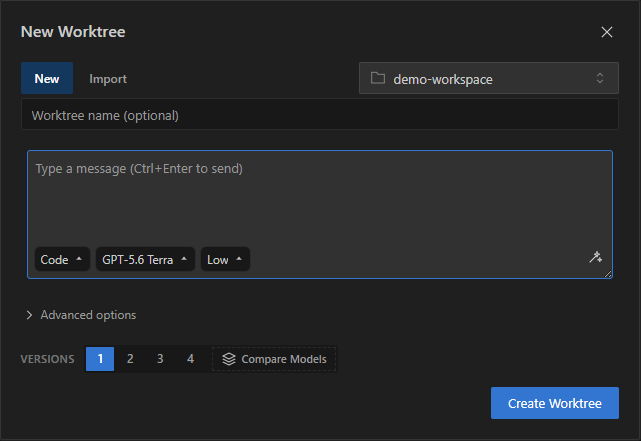
Describe the first task and choose how many versions to run.
Leave the branch name empty to have it generated. With automatic branch naming on, a session with a clear task description renames the branch; a name you entered is never replaced.
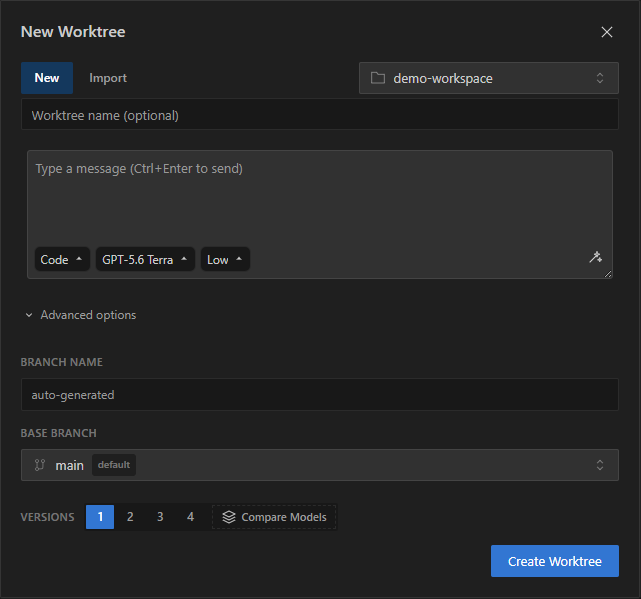
Advanced options set the branch name and the base branch.
Run several versions
Set Versions to start up to four worktrees with the same request in parallel. Select Compare Models to run each version on a different model and reasoning effort.
Each version is independent. Review their results and changes before you decide which one to keep.
Import existing work
Use the Import tab in the dialog to start from work that already exists:
- Pull Request: paste a pull request URL to check out its branch.
- Branches: select a local or remote branch.
Manage worktrees
Right-click a worktree, or open its menu, to Rename, Copy Path, Open in VS Code, or Delete worktree. Double-click a name to rename it.
- Sections: select New Section to group related worktrees. Rename a section, change its color, or move it up and down.
- Stale worktrees: a worktree marked Stale is missing on disk or no longer tracked by Git. Select Restore worktree when it can be recovered, or remove it. Remove, keep sessions removes the worktree but keeps its session history.
- Leftover folders: when old worktree folders remain on disk, Agent Manager shows how many there are and their size. Select Resolve… to review and delete them.
Run AI Cockpit: Agent Manager: Show Worktree Diagnostics when a worktree behaves unexpectedly.
Manage sessions
Select a worktree, then open another session tab with Ctrl+T (Cmd+T on macOS) or switch between existing tabs. Session history belongs to the selected worktree, so check the worktree before continuing a transcript or reviewing files.
Each tab shows the session status, such as working, waiting for you, retrying, or scheduled. From a tab's menu, Pin it, Fork Session, Close Others, or Close to the Right. Subagent sessions open in the panel on the right.
| Shortcut | Action |
|---|---|
| Ctrl+Alt+Up / Ctrl+Alt+Down | Previous or next session. |
| Ctrl+Alt+Left / Ctrl+Alt+Right | Previous or next tab. |
| Ctrl+1 to Ctrl+9 | Jump to an item in the sidebar. |
| Ctrl+W | Close the tab. |
On macOS, use Cmd instead of Ctrl.